HTTPS encrypts the traffic between your visitors and your site and shows the padlock in the browser. The free certificate is issued automatically by AutoSSL: you only need to check that it is in place, then send every visitor to the secure version. Verified on cPanel 138 (Meridian interface), on 20 October 2026.
On the Meridian interface (current)
Open cPanel
In “My services”, click “Web Hosting”, then “Manage” for the hosting account in question, and finally “Open cPanel”.
Open your site's page
In the left-hand menu, click “Websites & Apps”. On the
yourdomain.comrow, click “Manage”, then open the “SSL” tab.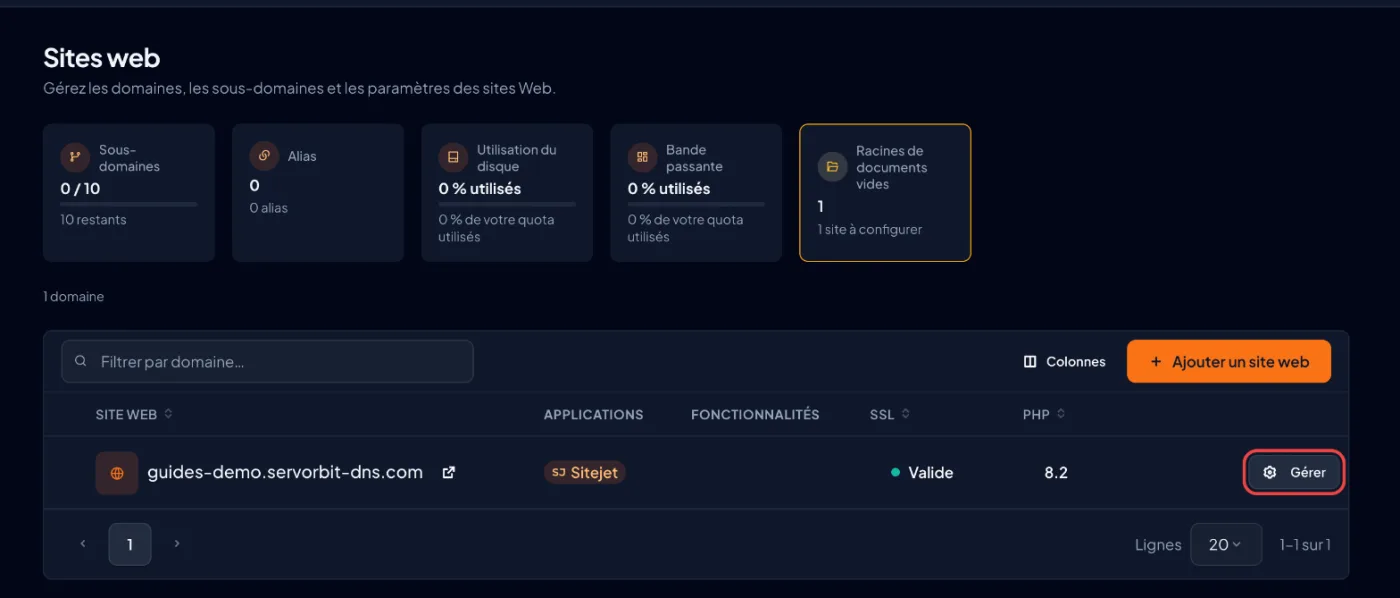
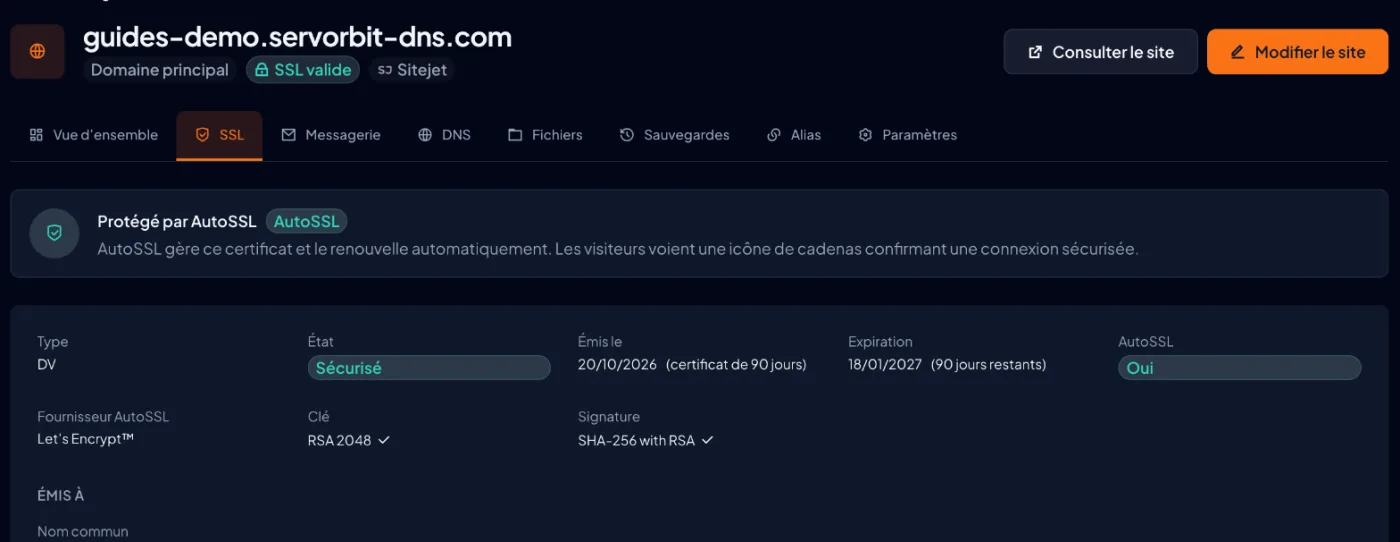
Check the certificate
If the tab shows “Your site is secure” and “Protected by AutoSSL”, the certificate is in place: go straight to the redirect. If it shows “No SSL certificate installed” or “Certificate does not cover this domain”, run AutoSSL (next step).
Run automatic SSL if needed
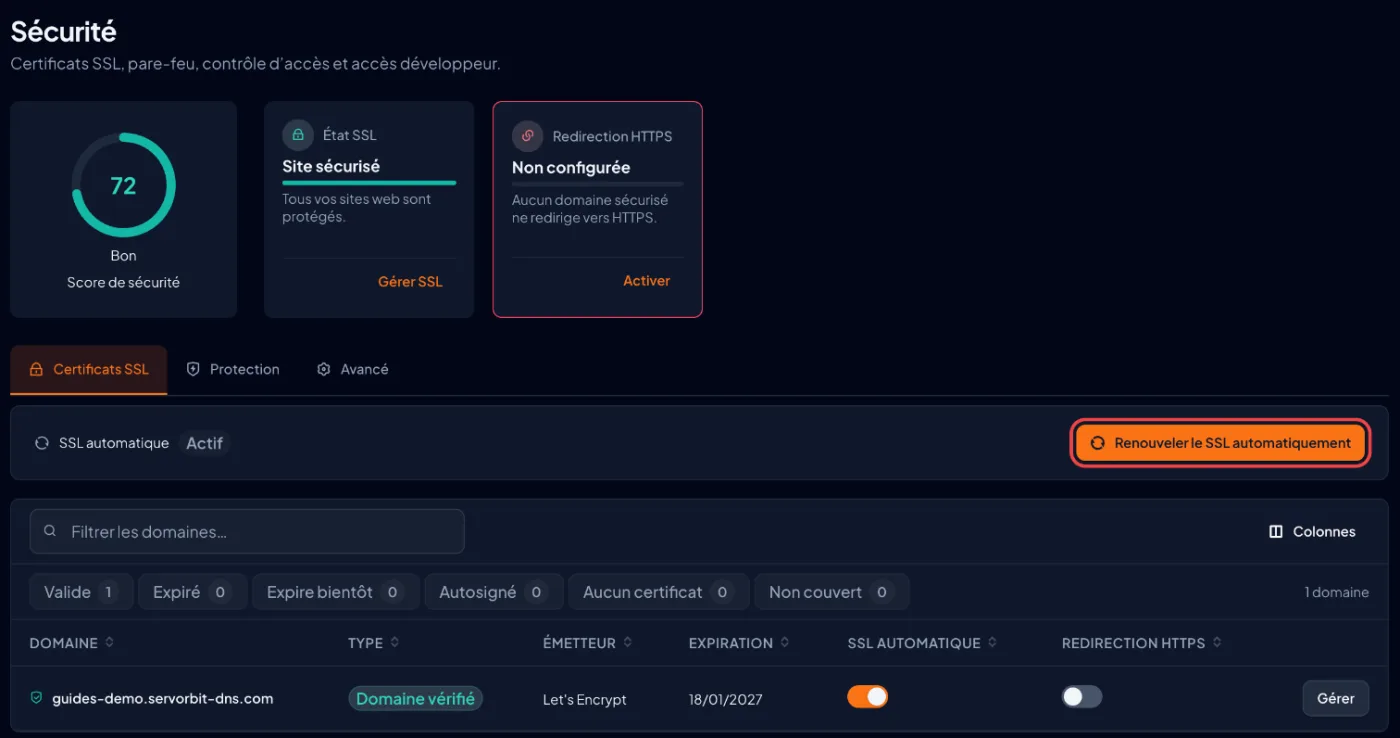
Open “Security” in the left-hand menu (or click the “Manage all SSL options in Security” link), then the “SSL Certificates” tab. Check that the “Automatic SSL” line shows “Active”, then click “Renew SSL automatically”. After a few minutes, reload the page: in the table, the “Type” column must change to “Domain Verified” and the “Issuer” column must show Let's Encrypt. A domain that is still “Self-signed” also appears in the “Action required” block, with a “Fix It” button.
Turn on the HTTPS redirect
Go back to your site's page (“Websites & Apps” › “Manage”), open the “Settings” tab and, in the “Domain Settings” section, switch on the “Force HTTPS” toggle. Any visitor who types
http://yourdomain.comis now sent tohttps://yourdomain.com. You can also do it from “Security” › “SSL Certificates”, with the toggle in the “HTTPS Redirect” column of the table.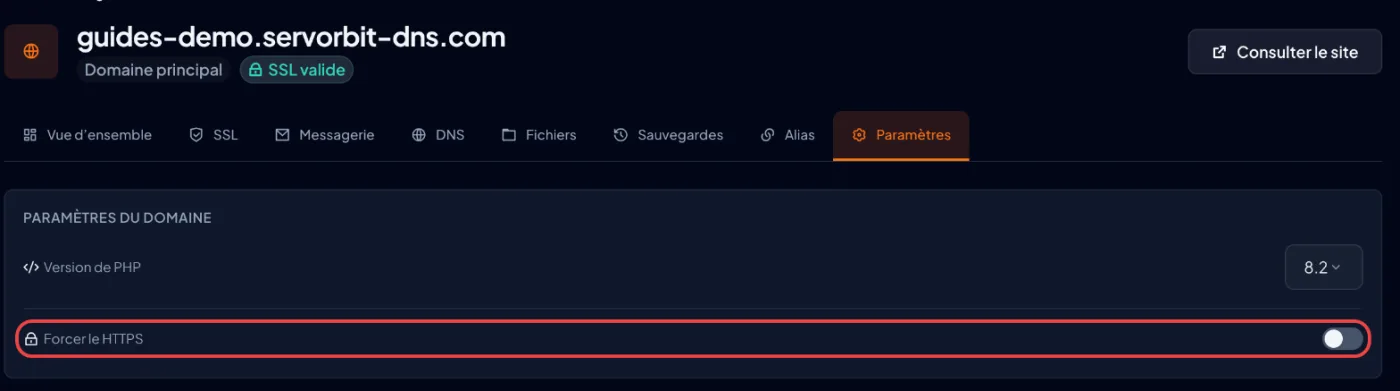
Test in a private window
Open
http://yourdomain.comin a private window: the address must switch tohttps://and the padlock must appear without any warning.
On the previous interface (Jupiter)
Scroll the table
| Step | Meridian | Jupiter |
|---|---|---|
| Check the certificate | Websites & Apps › “Manage” › “SSL” tab | Security section › “SSL/TLS Status” |
| Run AutoSSL | Security › “SSL Certificates” tab › “Renew SSL automatically” button | “Run AutoSSL” button on the “SSL/TLS Status” page |
| Read the cause of a failure | “Action required” block on the “SSL Certificates” tab › “Fix It” button | “Certificate Status” column of the domains table |
| Force the redirect | Site page › “Settings” tab › “Force HTTPS” | Domains section › “Domains” › “Force HTTPS Redirect” toggle set to “On” |
The common pitfall
Only turn on the redirect once the certificate is valid. Without a certificate, the redirect sends your visitors to a browser security warning page, and many leave straight away.
If it doesn't work
- The certificate stays “Self-signed”: the domain does not point to our server yet, so AutoSSL cannot issue a certificate. Check its name servers (Change a domain's nameservers); once the DNS is published, click “Renew SSL automatically”: the certificate switches to Let's Encrypt within a few minutes.
- The domain was just added to the hosting account: the certificate has not been issued yet. Wait a few minutes, click “Renew SSL automatically”, then reload the page.
- The “SSL” tab says “This domain is excluded from AutoSSL”: turn AutoSSL back on for this domain with the toggle on the same tab, then click “Renew SSL automatically”.
- The padlock is crossed out or the browser reports a page that is “not fully secure”: this is mixed content. An image, script or stylesheet is still loaded over
http://; replace those addresses withhttps://in your site or CMS. - The redirect cannot be turned on: the “HTTPS Redirect” card on the “Security” page shows “Needs a certificate” until the domain has a valid certificate. On an alias, the setting reads “Inherited from main domain”: turn it on for the main domain.



