An address on your own domain, such as [email protected], inspires more trust than a free mailbox. You create it in a few minutes in your hosting's cPanel, then read it in webmail or on your devices. Checked on cPanel 138 (Meridian interface) on 20 October 2026.
In the Meridian interface (current)
Open cPanel
In “My services”, click “Web Hosting”, then “Manage” for the hosting account in question, and finally “Open cPanel”. cPanel opens in a new tab, already signed in.
Open Email
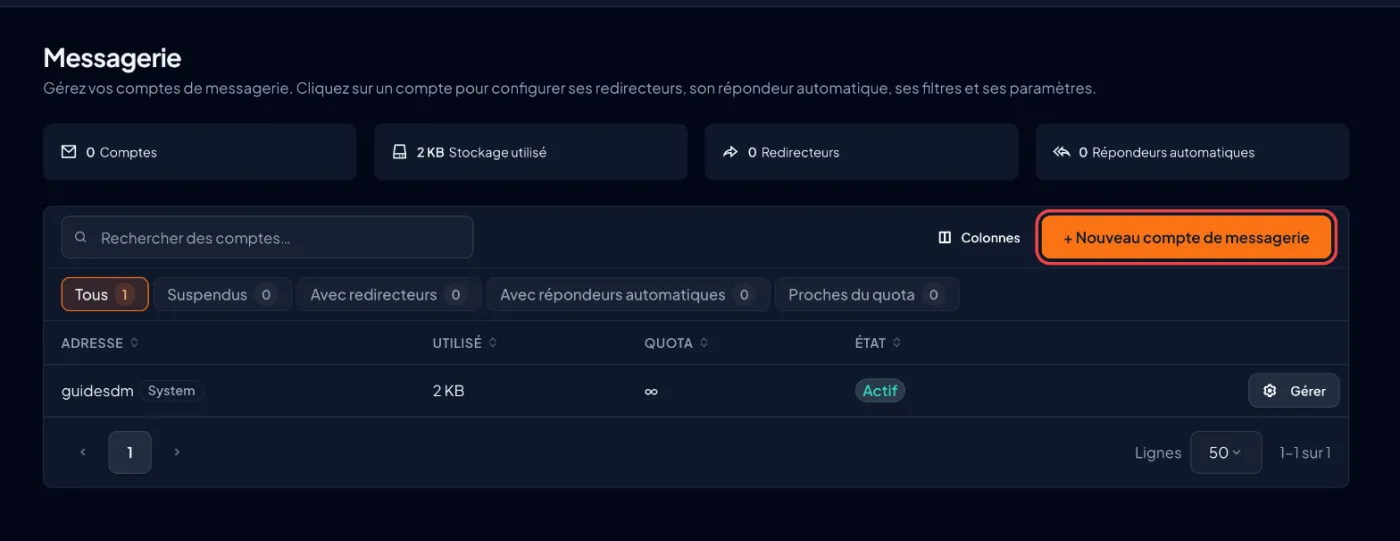
In the left sidebar, click “Email”. The page lists your existing mailboxes and the storage each one uses.
Start the creation
Click “+ New Email Account”. The “Create Email Account” form opens.
Choose the address name
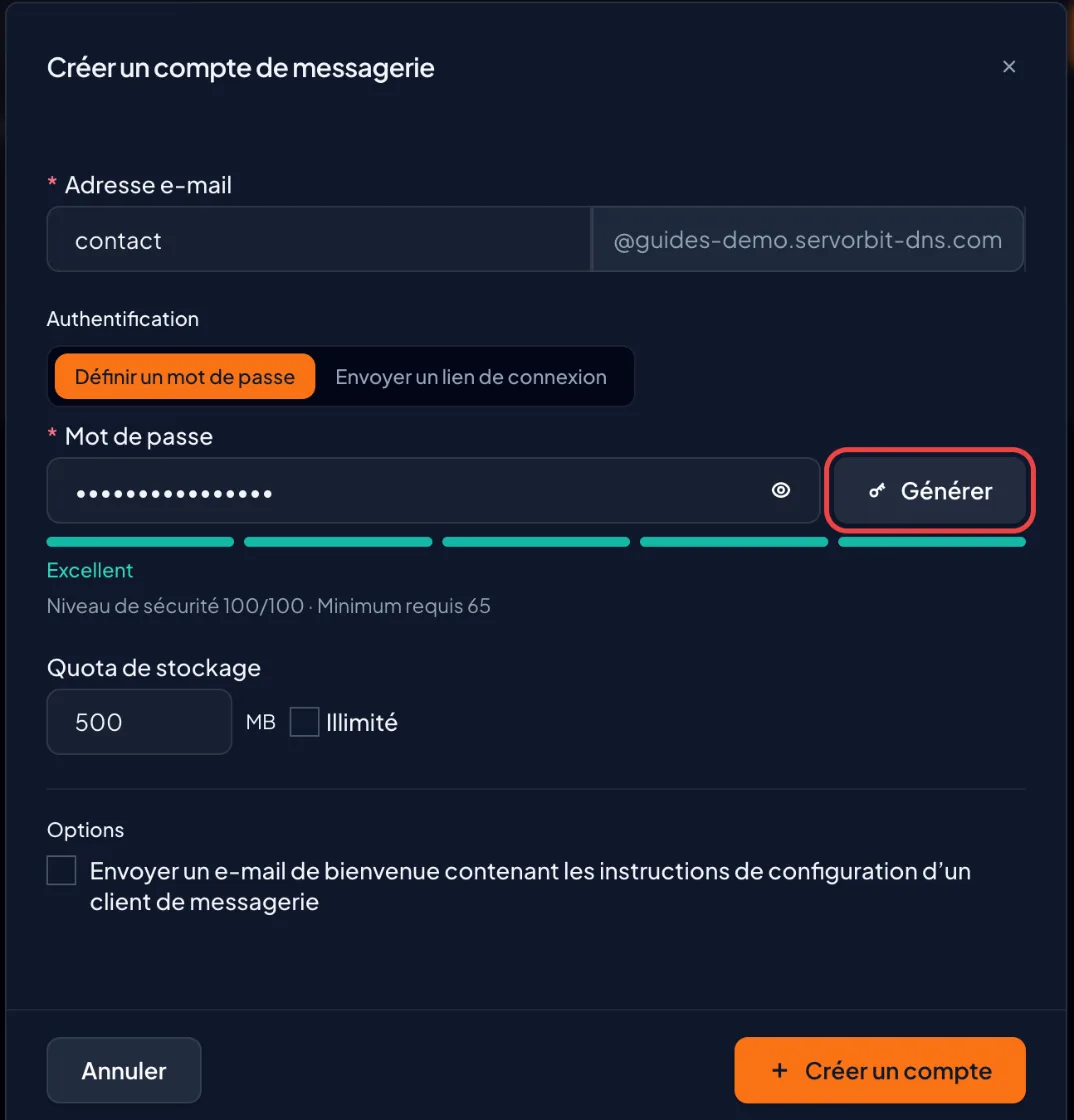
Type the username, that is the part before the @, for example
contact: letters, digits and. _ % + -, no spaces and no @. If your hosting carries several domains, check that the address is attached to the right one.Set the password and quota
In the “Set Password” tab, type a strong password or click “Generate”, and write it down. The “Send Login Link” tab instead sends the user, at a recovery address, a link to choose their own password. Then set the “Storage quota”, or tick “Unlimited” within the limits of your plan. If needed, tick “Send a welcome email with instructions to set up a mail client”, then click “Create Account”.
Open webmail
On the new mailbox's row, click “Manage”, then “Open Webmail”: it opens in a new tab, already signed in. You can also sign in directly at
https://webmail.yourdomain.comwith the full address and its password.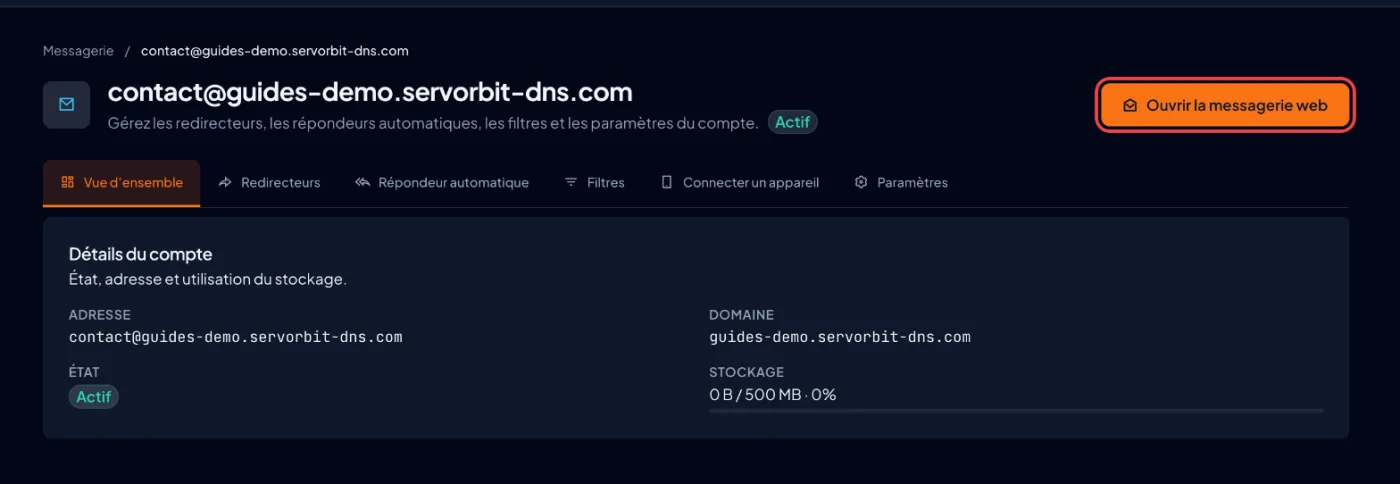
In the older interface (Jupiter)
Scroll the table
| Step | Meridian | Jupiter |
|---|---|---|
| Find the mailboxes | Sidebar, “Email” | Email section on the home page, “Email Accounts” icon |
| Start the creation | “+ New Email Account” button | “Create” button |
| Choose the domain | Address attached to the domain | “Domain” menu, shown only if the account has several domains |
| Open webmail | “Manage”, then “Open Webmail” | “Check Email” button on the mailbox's row |
The common pitfall
To sign in to webmail or an app, the username is the full address ([email protected]), not just the name typed at creation. And the password is the mailbox's, not cPanel's.
If it doesn't work
- You want to read your email on a phone or in Outlook: follow the guide Set up your business email on a phone and in Outlook.
- The password is rejected at creation: its strength rating is too low. Make it longer or click “Generate”.
- cPanel says temporary domains do not support email accounts: your account has no permanent domain yet. Attach your domain name to the hosting first.
- Creation is blocked: the number of mailboxes or the disk space allowed by your plan has been reached. Delete an unused mailbox or reduce a quota.
- “Pop-up blocked” appears when you click “Open Webmail”: allow pop-ups for cPanel in your browser, then try again.
webmail.yourdomain.comdoes not respond: the domain does not point to your hosting yet. Use “Open Webmail” in cPanel in the meantime.



