A subdomain, such as blog.yourdomain.com, publishes a second site (blog, shop, test area) under your domain name, with its own folder of files. You create it in cPanel in a few clicks, within the limit included in your plan. Verified on cPanel 138 (Meridian interface) on 20 October 2026. Verified on cPanel 138 (Meridian interface) on 20 October 2026.
In the Meridian interface (current)
Open cPanel
In “My services”, click “Web Hosting”, then “Manage” for the hosting account in question, and finally “Open cPanel”. Details: Log in to cPanel from your client area.
Open the websites page
In the side menu, click “Websites & Apps”. The “Websites” page lists your primary domain, followed by each of your subdomains.
Choose to create a subdomain
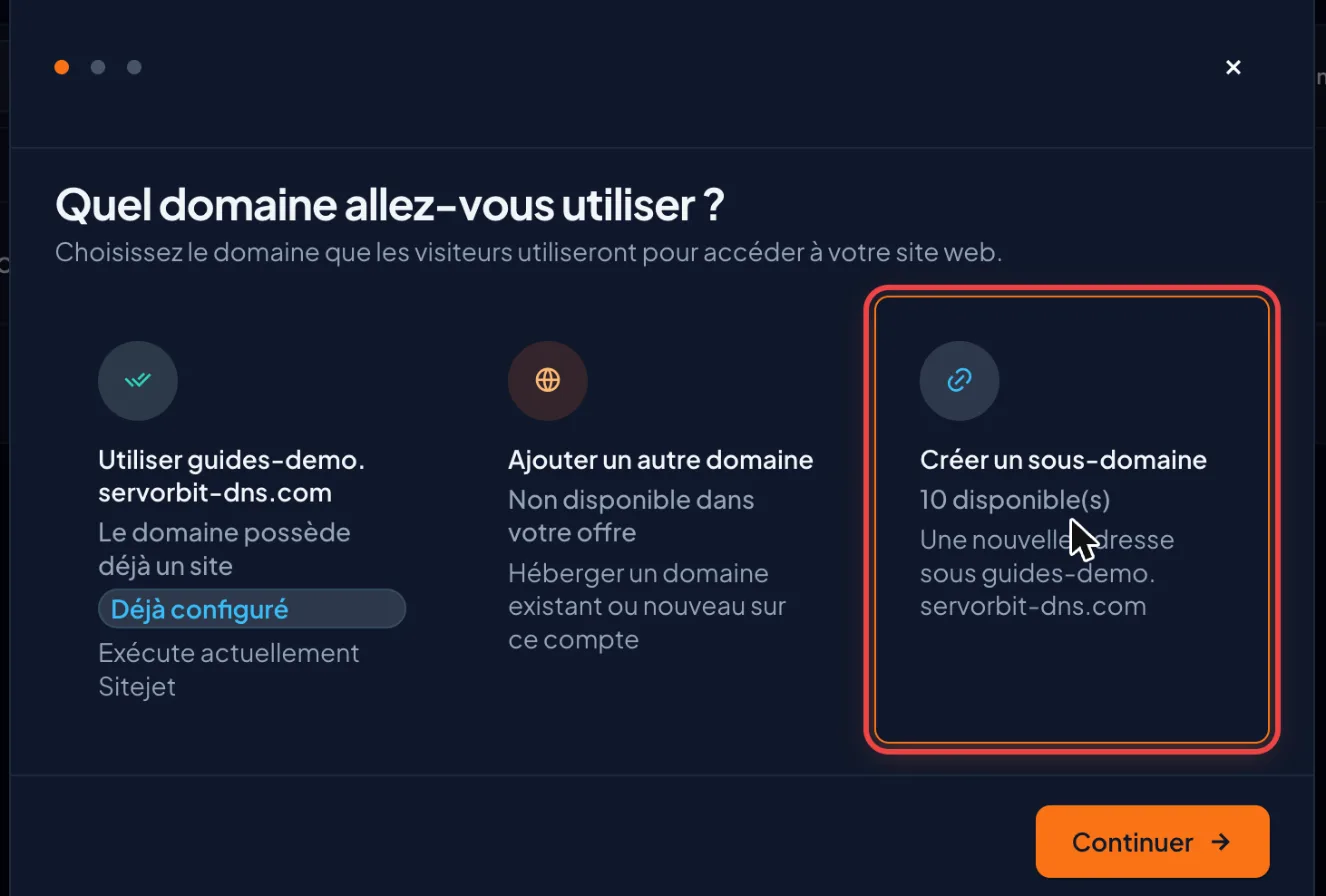
Click the “Add Website” button (+ sign). At “Which domain will you use?”, choose the “Create a subdomain” card, which shows how many subdomains your plan has left (for example “1 available”), then click “Continue”.
Name the subdomain
On the “Create your subdomain” screen, type the name you want in “Subdomain prefix”: the parent domain is shown next to it and the preview displays the full address,
bloggivingblog.yourdomain.com. Letters, numbers and hyphens only. Click “Continue”.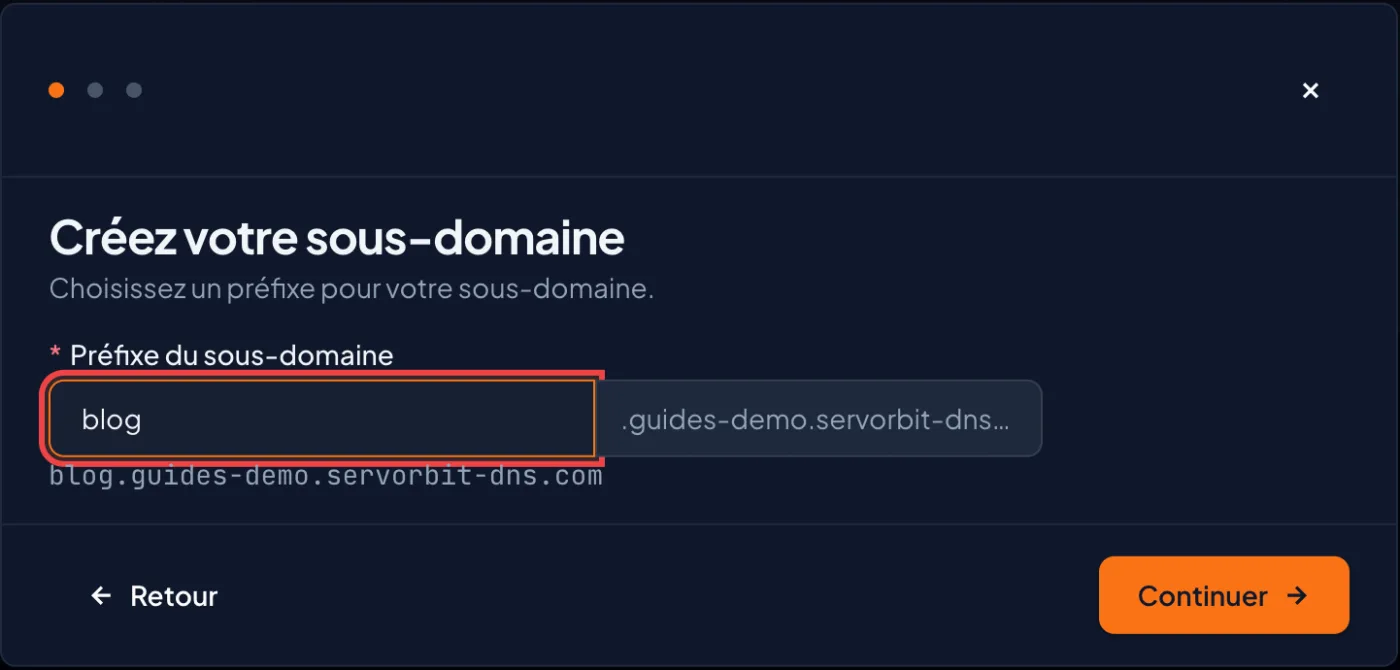
Choose the site tool
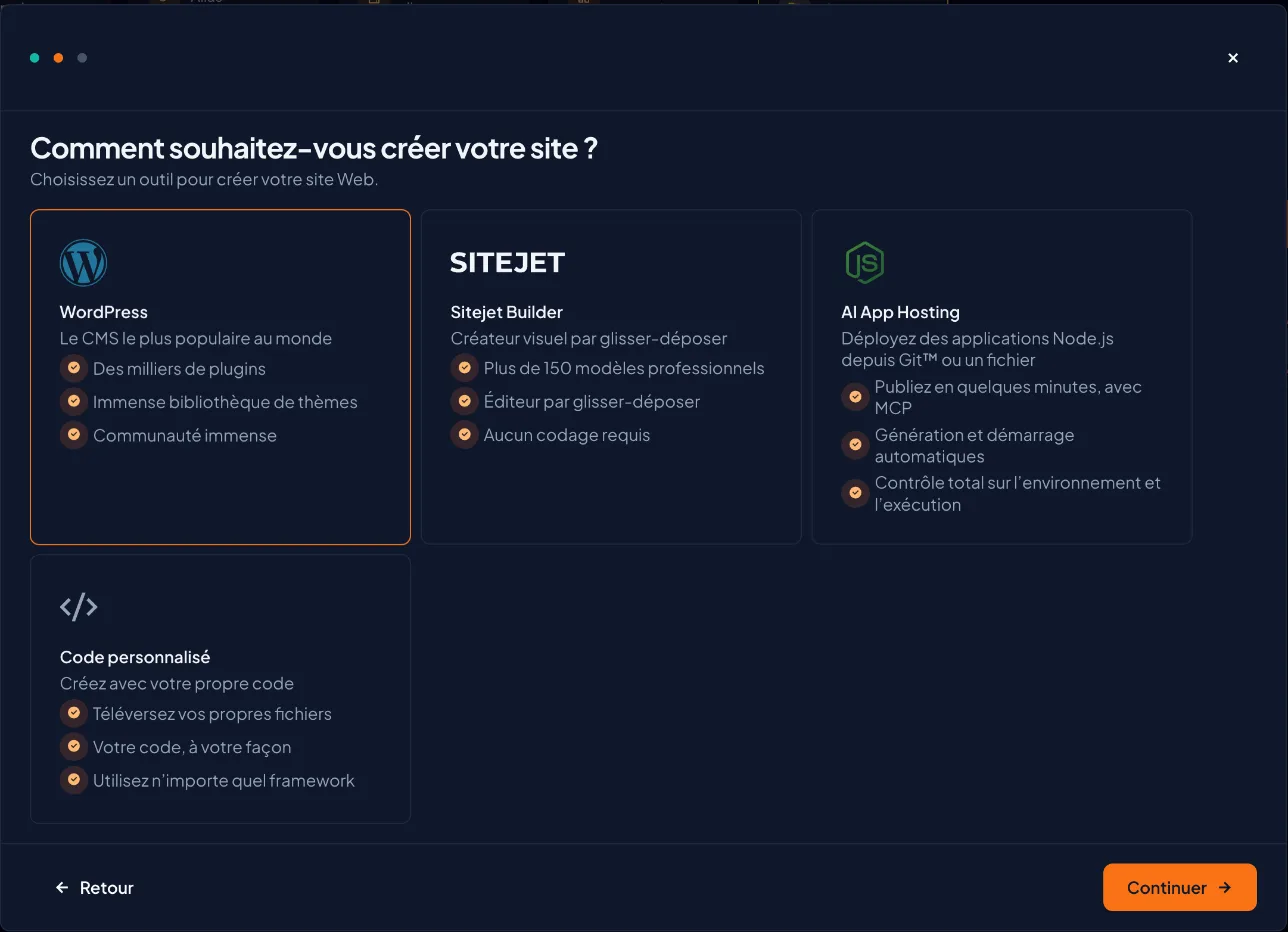
At “How do you want to build?”, choose “WordPress”, “Sitejet Builder” for a visual site, “AI App Hosting”, or “Custom Code” if you upload your own files, then click “Continue”.
Launch the site
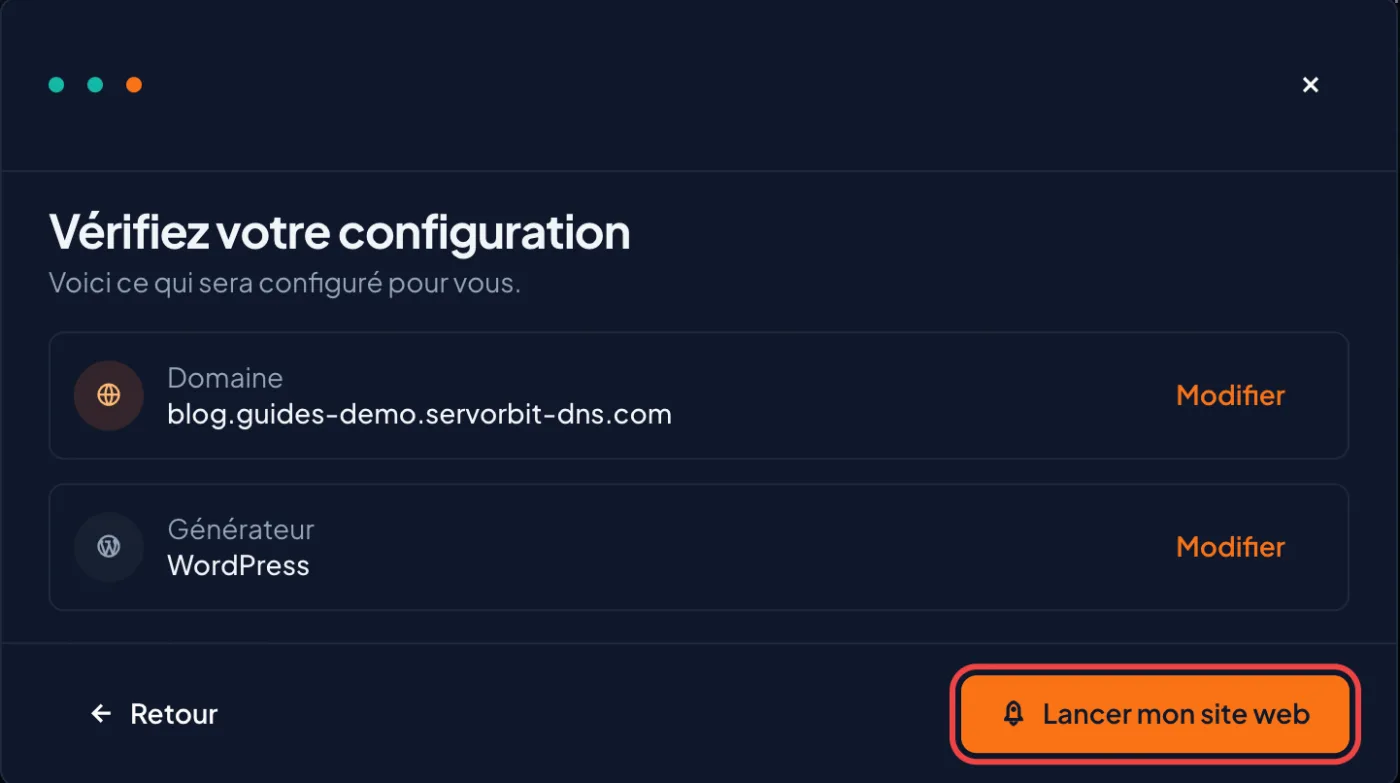
The “Review your setup” screen summarises the domain and the builder you chose; an “Edit” link takes you back to each one. Click “Launch My Website”: the subdomain then appears on the “Websites” page.
Find its folder and IP address
Click “Manage” on the subdomain's row. The “Overview” tab shows the “Website Folder”, created inside
public_htmlunder its full name (public_html/blog.yourdomain.com), and the hosting “IP Address”. You change the folder in the “Settings” tab, “Danger Zone” section, with “Edit”; “Remove Domain” there removes the subdomain, its DNS records, configuration, redirects and FTP accounts, without deleting its files.Add the DNS record
Essential: creating the subdomain in cPanel does not make it reachable if your domain uses our “Managed DNS zone” or another provider's name servers. In your domain's zone, add an A record
blogpointing to the IP address from the previous step, or a CNAMEblogpointing toyourdomain.comif that already points to the hosting: Add or edit a DNS record. The free SSL certificate (AutoSSL) is issued automatically once the name is reachable.
In the older interface (Jupiter)
Scroll the table
| Step | Meridian | Jupiter |
|---|---|---|
| Find the feature | Side menu, “Websites & Apps” | Home page, “Domains” section, “Domains” icon |
| Start the creation | “Add Website”, then “Create a subdomain” | “Create a New Domain” |
| Enter the name | The prefix only (blog) in “Subdomain prefix”; the parent domain is added | The full name in the “Domain” box: blog.yourdomain.com |
| Document root | Created inside public_html under its full name, shown in “Overview” (“Website Folder”) and editable in “Settings”, “Danger Zone” section | Deselect “Share document root” to give it its own folder, editable in “Document Root (File System Location)” |
| Manage DNS | The subdomain's “DNS” tab, or your domain's DNS zone if the hosting does not manage it | “Zone Editor” |
The common pitfall
cPanel only writes the DNS record to its own zone. If your domain uses our “Managed DNS zone” block or another provider's name servers, the subdomain exists in cPanel but cannot be reached on the Internet until you add the A record (or the CNAME): this is also why WordPress does not open by itself at the end of the installation.
If it doesn't work
- WordPress does not open at the end of the installation, or the browser says the site cannot be found: the subdomain's DNS record is missing. Add the A or CNAME record in your domain's zone (step 8), then wait a few minutes to a few hours.
- The browser reports an invalid certificate: AutoSSL only issues the certificate once DNS is in place; it is then installed automatically, with nothing for you to do.
- The “Create a subdomain” option shows “Not available on your plan”, or cPanel says “You have used all your subdomain slots”: your plan's subdomain limit has been reached. Delete an unused subdomain or upgrade your plan.
- The wizard offers neither Sitejet Builder nor WordPress and shows “This folder contains files”: the subdomain's folder is not empty. Empty it in the File Manager, or choose another prefix.
- The page stays blank: upload your files to the subdomain's website folder (document root), not to the primary domain's.



