cPanel installs WordPress on your domain in a few clicks: it creates the files, the database and the administrator account for you, with no manual upload. Verified on cPanel 138 (Meridian interface), on 20 October 2026.
On the Meridian interface (current)
Open cPanel
In “My services”, click “Web Hosting”, then “Manage” for the hosting account in question, and finally “Open cPanel”. cPanel opens in a new tab, already signed in.
Open your domain's page
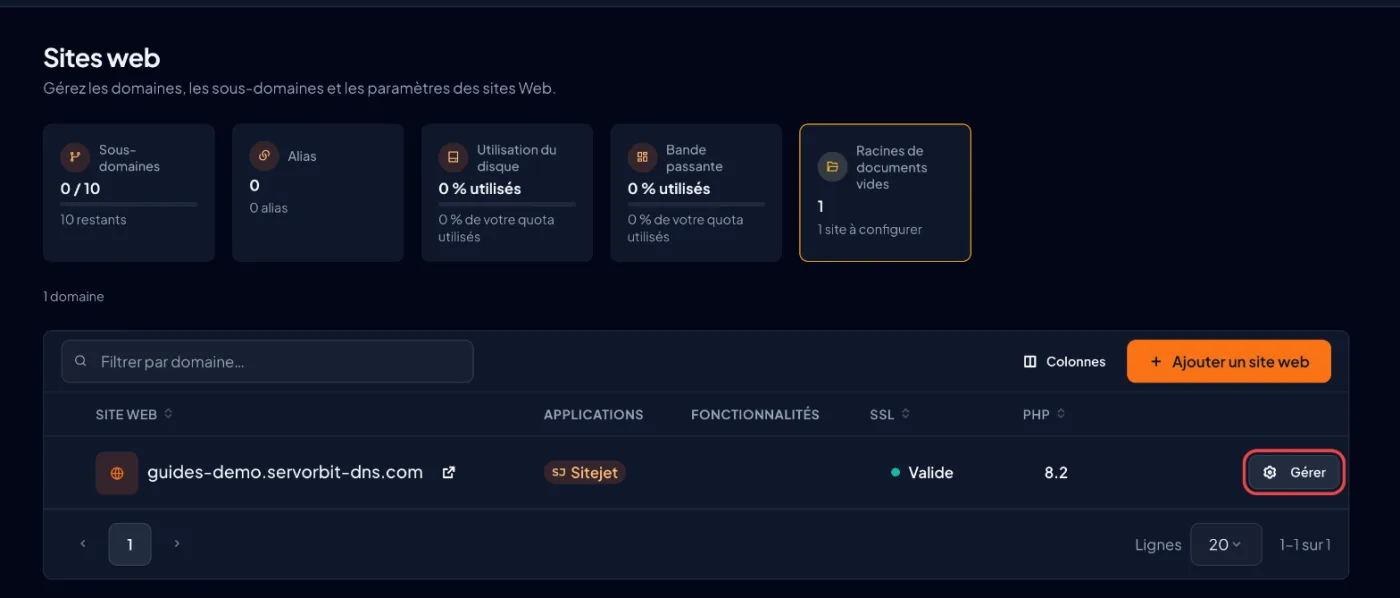
In the left-hand menu, click “Websites & Apps”, then, on the row of your main domain (for example yourdomain.com), click “Manage”. The site's page opens on the “Overview” tab.
Choose WordPress
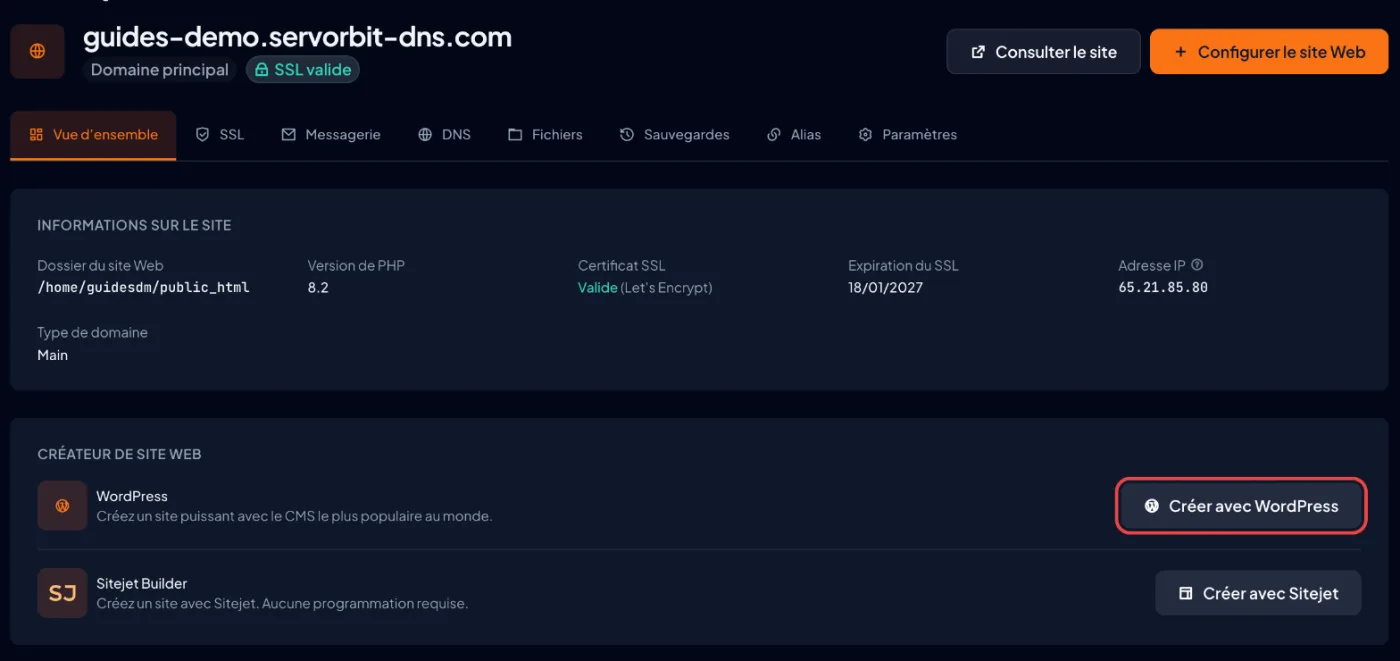
If the site folder is empty, the “Website Builder” block offers a “Build with WordPress” button: click it. Installation starts right away, with no intermediate screen.
Or go through the assistant
The other way: the “Set Up Website” button, the “WordPress” choice, then “Continue”. The “Review your setup” screen then sums up the “Domain” and the “Builder”; click “Launch My Website”. Either way, WordPress is installed on the domain root, with no folder to choose.
Let the installation finish
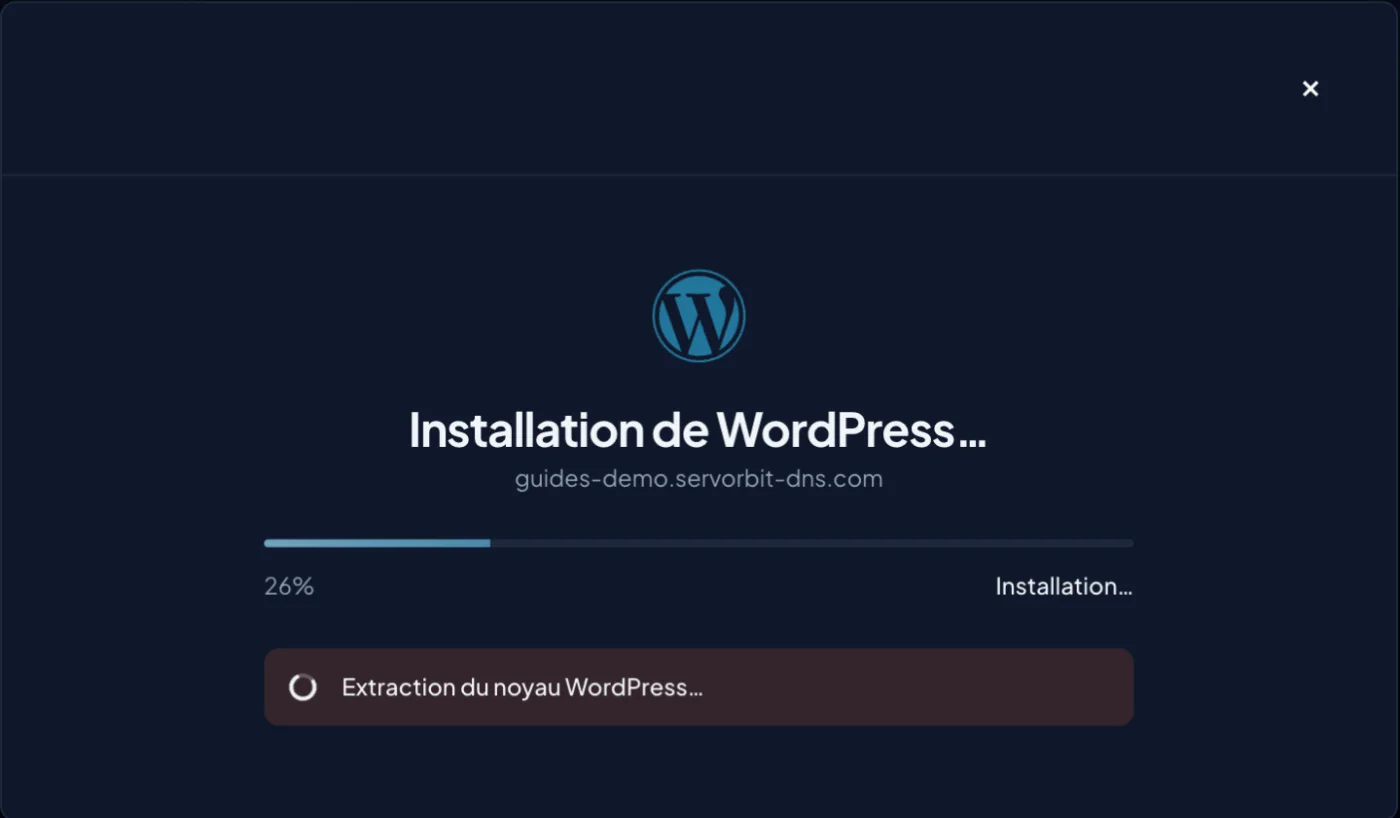
The “Installing WordPress…” window shows a progress bar (“Downloading and unpacking…”, “Setting up the database…”…). Keep the tab open until the end: it usually takes one to two minutes.
Land in the WordPress dashboard
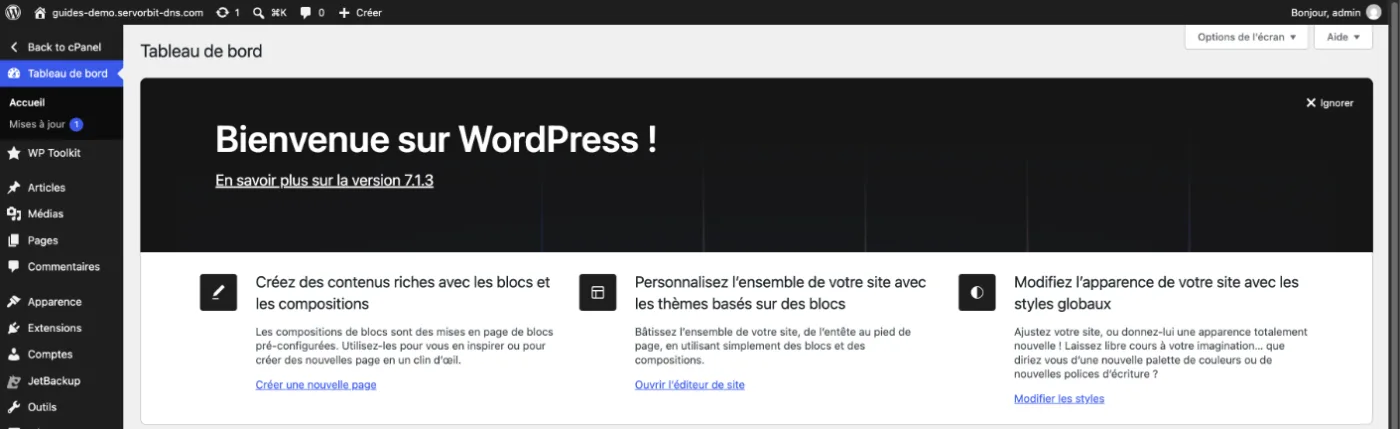
At the end, cPanel opens the WordPress dashboard directly in the same tab, already signed in: no credentials to enter. From then on, the site's page (Websites & Apps, then “Manage”) shows the “Visit Site” and “WP Admin” buttons. To change the dashboard language, go to Settings › General › Site Language.
On the previous interface (Jupiter)
Scroll the table
| Step | Meridian | Jupiter |
|---|---|---|
| Start the installation | Websites & Apps › Manage › Build with WordPress › Launch My Website | cPanel home page, “Domains” section, WordPress installation tool |
| Administrator credentials | Created by cPanel, automatic sign-in at the end; password can be changed in the site's Settings tab | Entered by you in the installation form, along with the language and the folder |
The right reflex
cPanel signs you in automatically and never asks for a password. To be able to sign in one day without going through cPanel (at https://yourdomain.com/wp-admin), set your own right away: site page, “Settings” tab, “WordPress Admin Account” section, “Change WordPress Password” button.
If it doesn't work
- The “Website Builder” block does not appear, or “Set Up Website” offers neither WordPress nor Sitejet Builder and shows “This folder contains files”: your domain's public_html folder is not empty (for example an old
index.htmlpage). Click “Open File Manager”, delete or move those files, then start again. - “Document root has files from a previous installation” message: a previous installation left files behind. Delete them via “Open File Manager”, or click “Pick Another Domain”.
- “WordPress is already installed on this domain” message: no need to reinstall, click “Open WordPress”.
- At the end of the installation, the browser shows an error instead of the dashboard: the domain (or subdomain) does not point to our server yet. WordPress is installed all the same; a newly registered or changed domain can take a few hours. Then open the dashboard with the “WP Admin” button on the site's page.
- The browser shows a security warning: the free certificate (AutoSSL) is issued automatically, but can take a little while after the domain is added; wait, then reload the page.
- WordPress administrator password lost or never set: in Websites & Apps, click “Manage” for your domain, open the “Settings” tab, then, under “WordPress Admin Account”, click “Change WordPress Password”.



