A MySQL database stores the content of a dynamic site (WordPress, online shop, PHP application). In cPanel, a single wizard creates the database, creates its user and gives that user all privileges on the database. Checked on cPanel 138 (Meridian interface) on 20 October 2026.
On the Meridian interface (current)
Open cPanel
In “My services”, click “Web Hosting”, then “Manage” for the hosting account in question, and finally “Open cPanel”.
Start the creation wizard
In the left sidebar, click “Databases”, then “Create Database”. The wizard has three steps: “Add Name”, “Create User” and “Set Privileges”.

Name the database
In “Database name”, enter a short name, without spaces or accents, for example
shop. cPanel shows your account prefix to the left of the field (for exampleaccountname_): the database will be calledaccountname_shop. Click “Next: Create User”.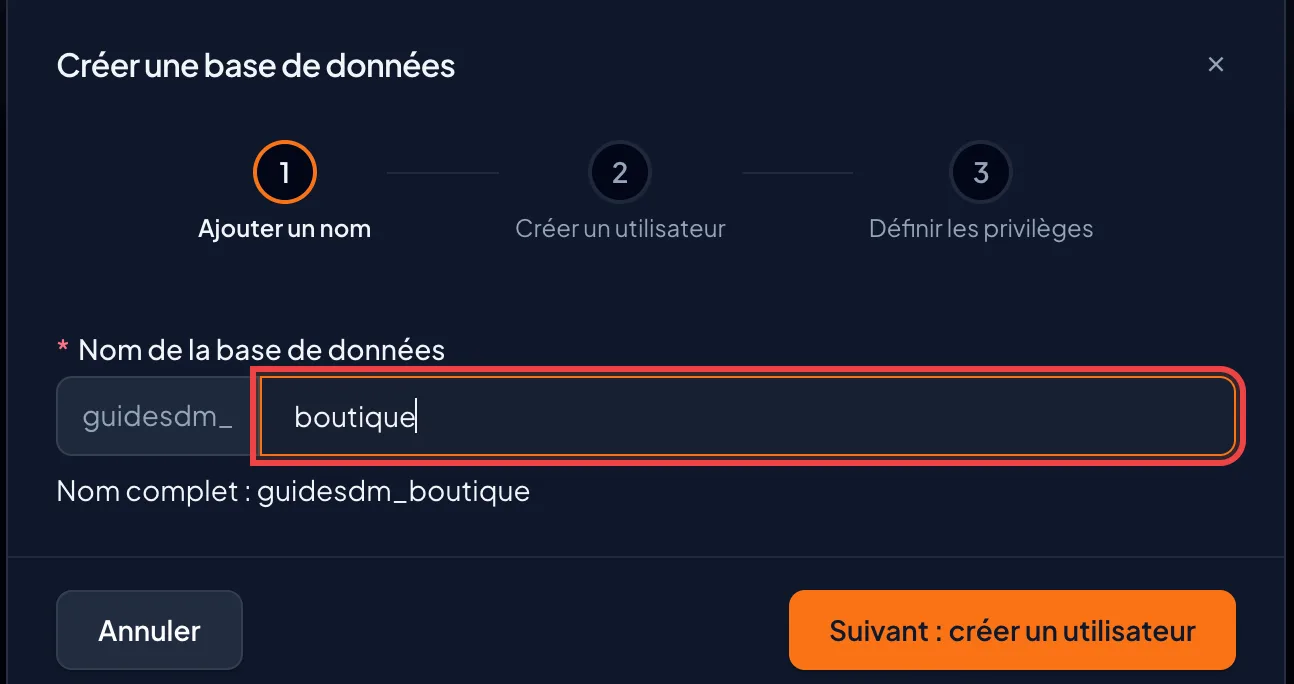
Create the user
Enter a “Username” (letters, numbers,
_and-only) and a strong “Password”. The username also gets the account prefix (accountname_admin, for example). This wizard creates a separate user for each database. Click “Next: Set Privileges”.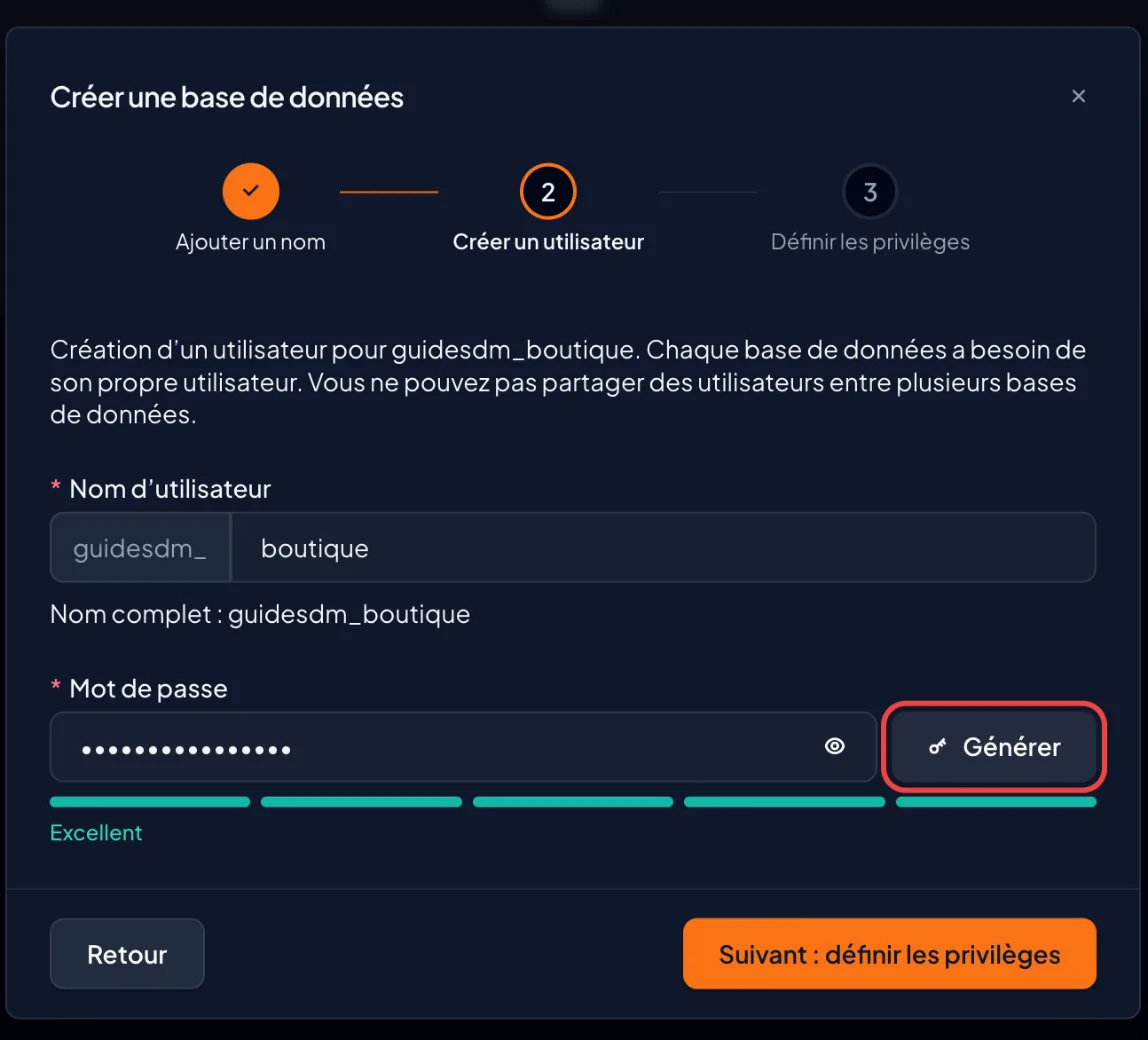
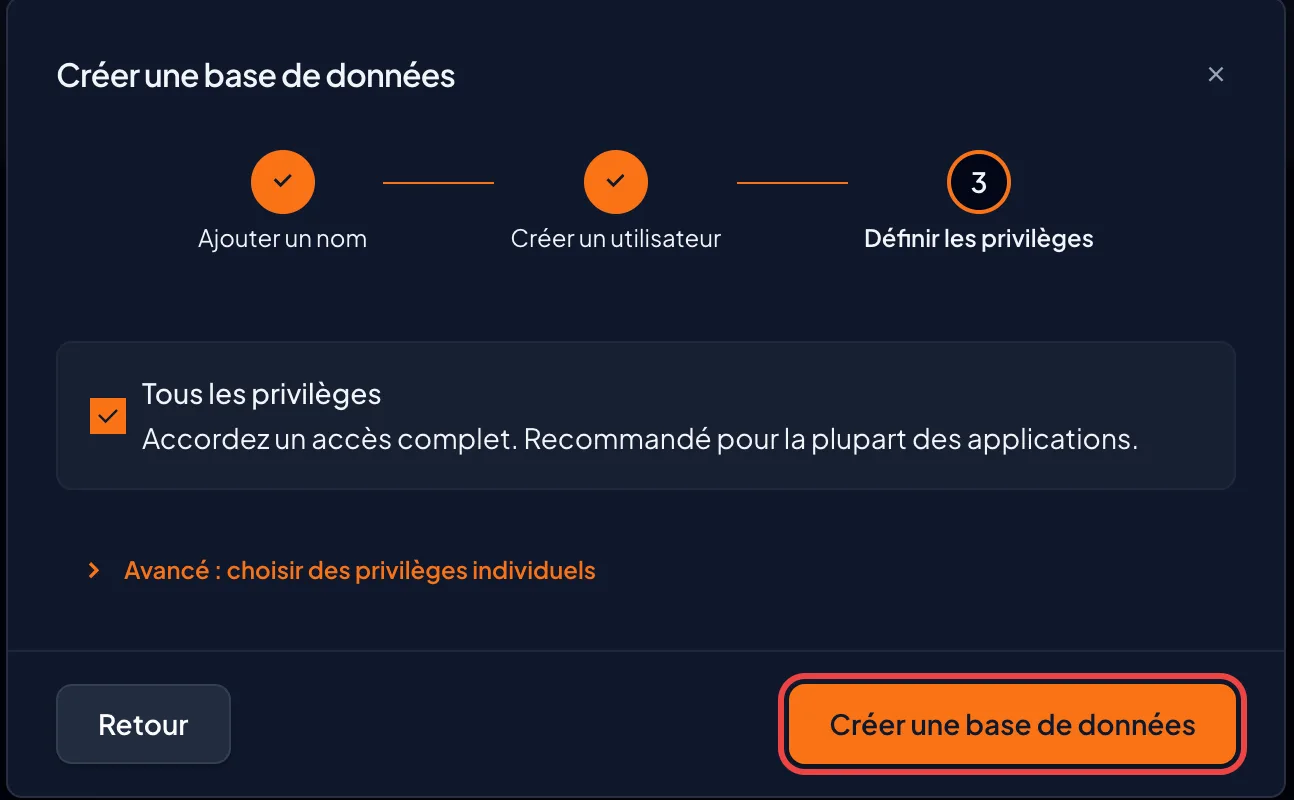
Grant all privileges
Leave “All Privileges” selected, without opening “Advanced: Choose Individual Privileges”, then click “Create Database”.
Write down the connection details
The “Database created successfully” screen shows the “Connection details”: “Database”, “Host” and “Port”. For a site hosted on the same account, the host is
localhost. Also copy the user's password: cPanel warns “Copy this password now. You will not see it again.”Import a .sql file if needed
To bring in an existing database, go back to “Databases”, click “Manage” on the database's row, open the “Advanced” tab, then click “Open phpMyAdmin” (the “Open in new tab” link shows it full page). Select the database on the left, open the Import tab, choose your
.sqlfile and run the import.
On the older interface (Jupiter)
Scroll the table
| Step | Meridian | Jupiter |
|---|---|---|
| Find the tool | “Databases” in the sidebar, then “Create Database” | Databases section of the home page: Manage My Databases (MySQL Databases in older versions) or MySQL Database Wizard |
| Create the database and user | One wizard: “Add Name”, “Create User”, “Set Privileges” | Two forms on the same page: New Database, then Add a user; the Wizard chains both |
| Link the user to the database | Wizard step “Set Privileges”: “All Privileges” | Add User To Database, then the ALL PRIVILEGES checkbox and Make Changes |
| Add another user | “Manage” on the database, “Users” tab, “Add User” | Same Add User To Database form |
| Open phpMyAdmin | “Manage” on the database, “Advanced” tab, “Open phpMyAdmin” | phpMyAdmin icon in the Databases section |
The common pitfall
In your site's configuration (wp-config.php for WordPress), enter the full names with the prefix: accountname_shop and accountname_admin, not shop or admin. A missing prefix is the number one cause of database connection errors.
If it doesn't work
- “Access denied” when connecting: click “Manage” on the database's row, “Users” tab. If the user is missing or marked “Revoked”, click “Edit Privileges” on its row, choose “All Privileges”, then “Save Privileges”.
- Lost password: cPanel never shows it again. In the database's “Users” tab, click “Add User” to create a new one, update the site's configuration with its credentials, then delete the old user.
- The name is rejected: a username accepts only letters, numbers,
_and-, and each name has a maximum length, prefix included. Shorten it. - The phpMyAdmin import fails on a large file: compress it to
.sql.gzor split it, then run the import again. - You cannot create a new database: you have reached the number of databases included in your plan; delete an unused one or change plans.



