To read and send messages for [email protected] from your phone, Outlook or Apple Mail, the app needs the mailbox's connection settings. cPanel displays them on each mailbox's page, and even offers automatic setup for iPhone, iPad and Mac. Verified on cPanel 138 (Meridian interface) on 20 October 2026.
On the Meridian interface (current)
Open cPanel
In “My services”, click “Web Hosting”, then “Manage” for the hosting account in question, and finally “Open cPanel”.
Open the mailbox
In the sidebar, open “Email”. Find the address to set up (the “Search accounts…” field helps if the list is long) and click “Manage” in its row.
Open the connection tab
The mailbox page has the tabs “Overview”, “Forwarders”, “Autoresponder”, “Filters”, “Connect Device” and “Settings”. Click “Connect Device”.
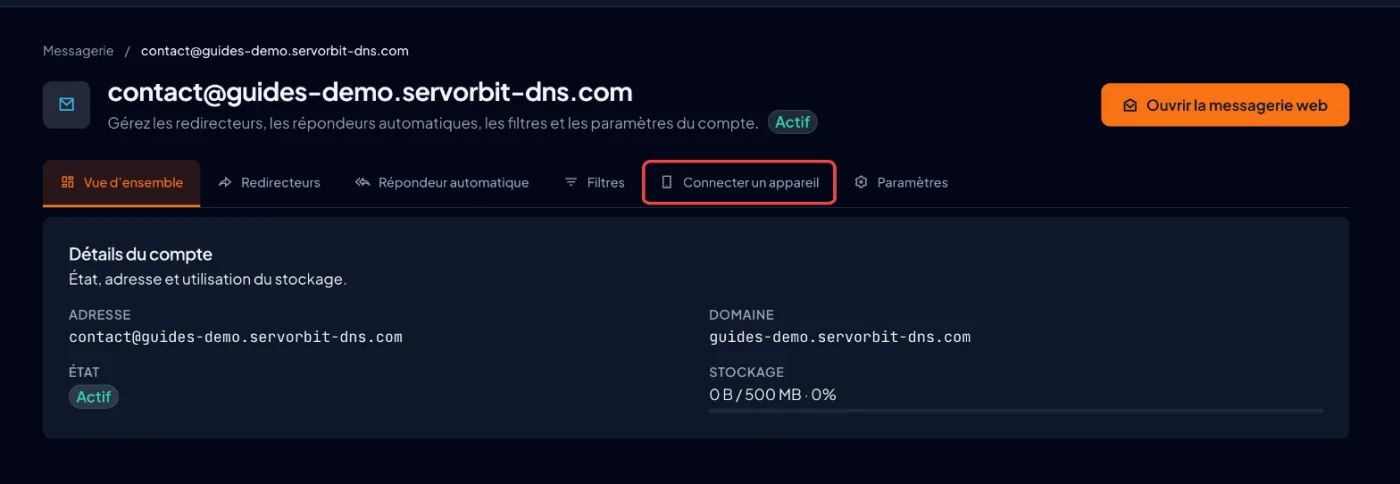
Set up an iPhone, iPad or Mac automatically
In the “Automatic setup” block, click “Download Configuration Profile”, then open the file on the device and install the profile. Outlook and Thunderbird: just enter the full address and its password; they often find the settings on their own.
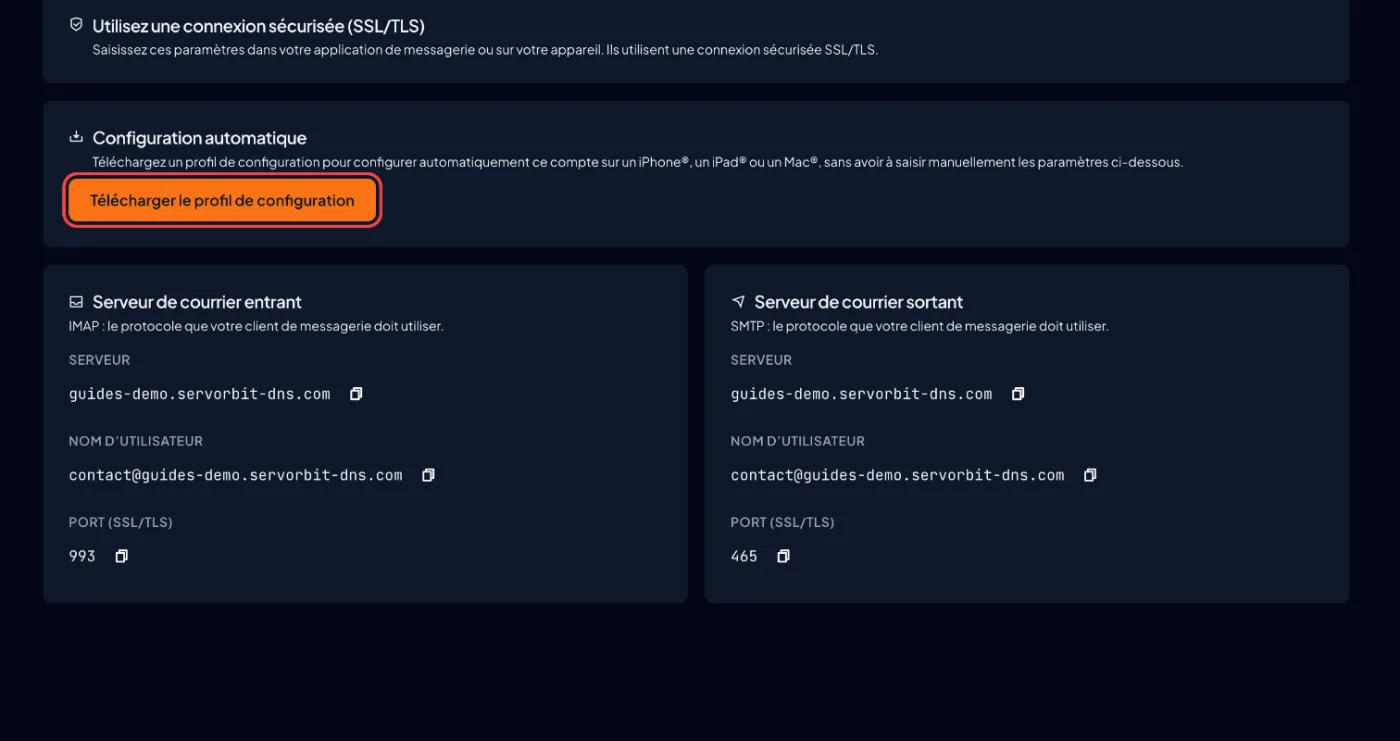
Otherwise, note the settings
The tab shows two blocks: “Incoming mail server” (IMAP protocol) and “Outgoing mail server” (SMTP protocol). Each one gives the “Server” (your domain name), the “Username” (the full address) and the “Port (SSL/TLS)”: 993 for incoming, 465 for outgoing. The “Copy” button copies each value without typos.
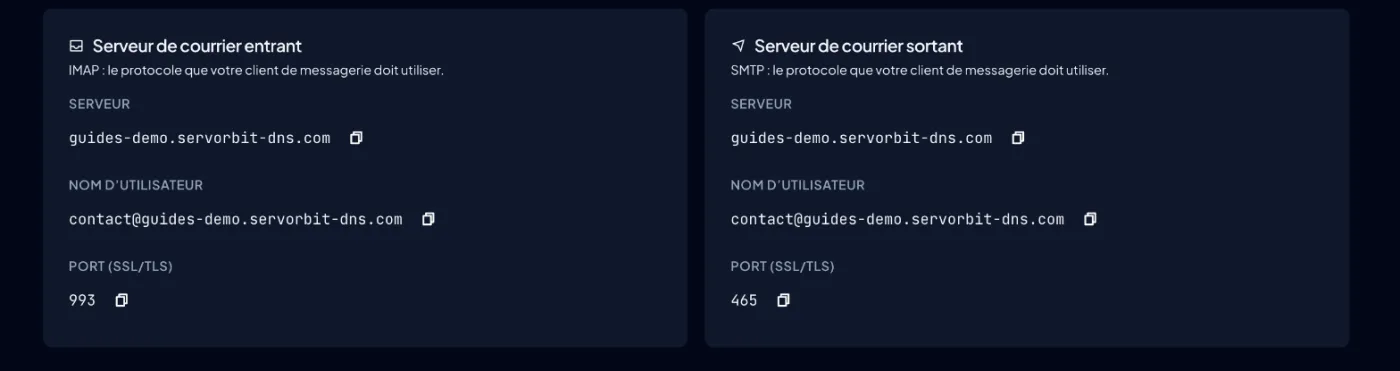
Enter them in the app
Add an IMAP account and copy the values from the screen: username = the full address, password = the mailbox password, incoming and outgoing servers = the exact name shown, port 993 for incoming and 465 for outgoing, SSL/TLS connection, and authentication enabled for sending.
On the older interface (Jupiter)
Scroll the table
| Step | Meridian | Jupiter |
|---|---|---|
| Find the list of mailboxes | “Email” in the sidebar | “Email” section of the home page, “Email Accounts” tool |
| Open the connection settings | “Manage” in the mailbox's row, then the “Connect Device” tab | “Connect Devices” button in the account's row |
| Settings page | “Connect Device” tab of the mailbox page | “Set Up Mail Client” page |
The common pitfall
The username is the full email address ([email protected]), and the password is the mailbox password — not your cPanel password, nor your phone's. Forgot it? On the mailbox page, open the “Settings” tab and click “Change Password”.
If it doesn't work
- Receiving works but sending fails: check the outgoing server, port 465 with SSL/TLS (“Outgoing mail server” block) and tick the option saying the outgoing server requires authentication.
- Certificate warning: the server name you entered does not exactly match the one on the “Server” line — copy it with the “Copy” button.
- Messages vanish from your other devices or come back as “unread”: the account was added as POP3. Remove it from the app and add it again as IMAP.
- You do not see “Email” in cPanel, or cPanel says “Temporary domains do not support email”: your plan or domain does not allow email yet. Contact our support.



