Sitejet Builder, included with your hosting, lets you build a business website from a professional template, with drag and drop and without writing code. Once published on your main domain, it replaces the placeholder “Site en préparation” page installed when the hosting was set up. Verified on cPanel 138 (Meridian interface), on 20 October 2026.
In the Meridian interface (current)
Open cPanel
In “My services”, click “Web Hosting”, then “Manage” for the hosting account in question, and finally “Open cPanel”.
Open your main domain
In the left-hand menu, click “Websites & Apps”. On the row for
yourdomain.com(type “Main Domain”), click “Manage”: the site page opens on the “Overview” tab.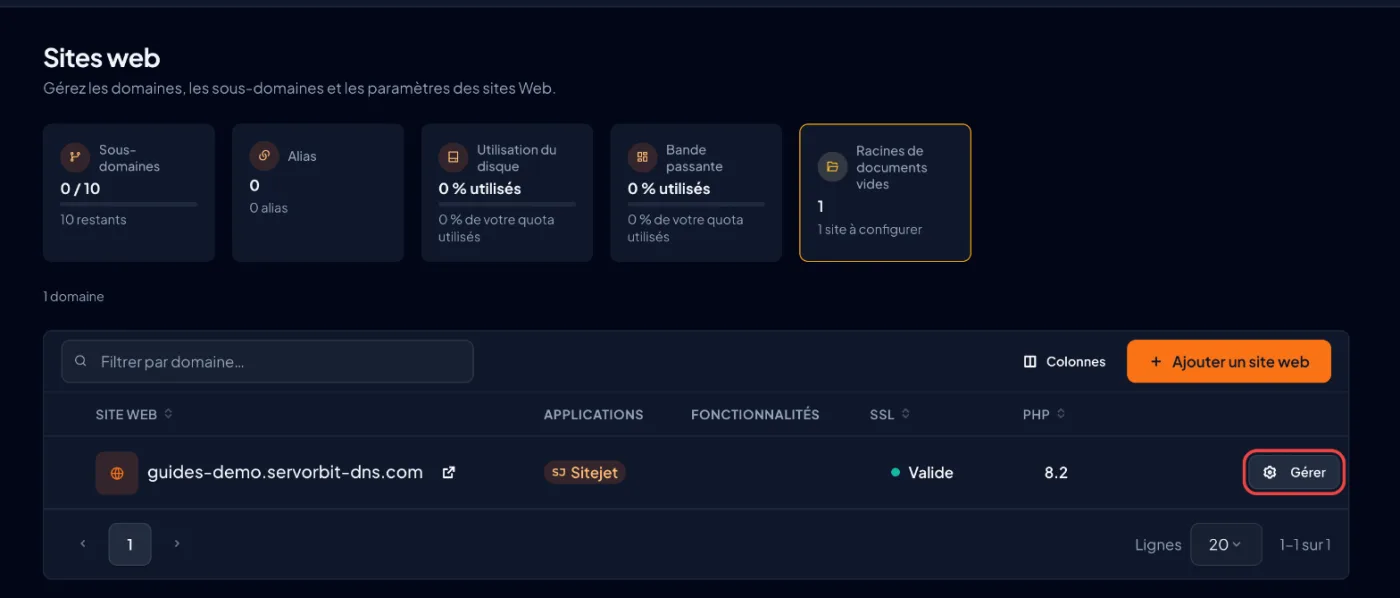
Launch Sitejet
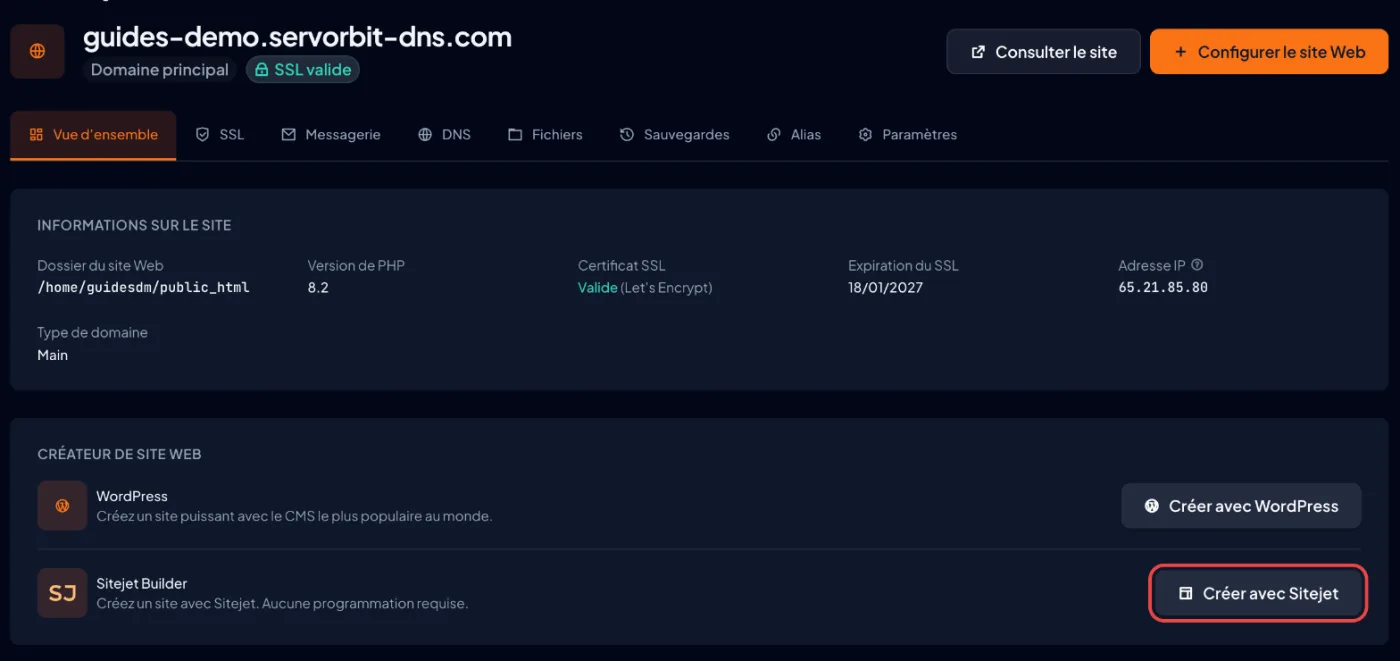
In the “Website Builder” block, click “Build with Sitejet”: the button shows “Setting up…”, then the Sitejet editor opens in the same tab. Other route: the “Set Up Website” button, select “Sitejet Builder”, then “Continue”.
Choose a template
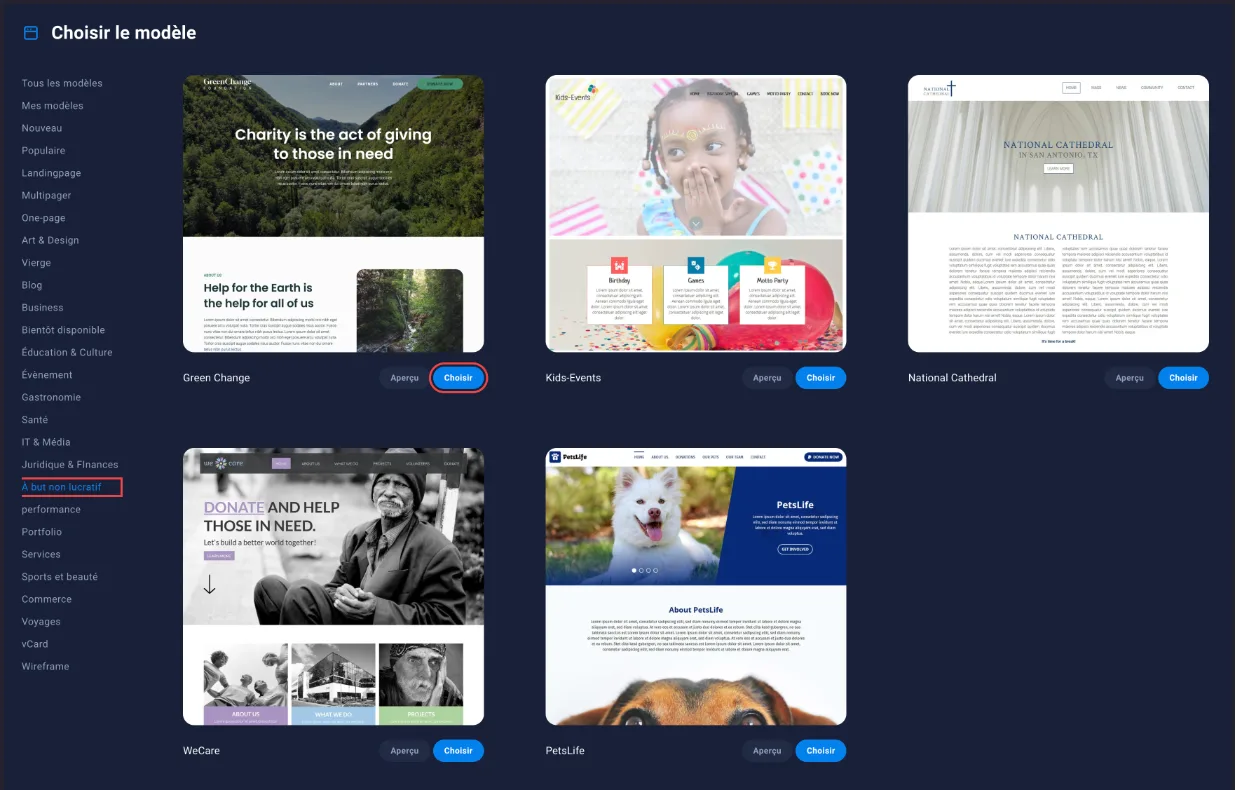
On the editor's start screen, choose your starting point: the “Template Selection” card (or “AI Website Generator” to get a first version from a description of your business). Filter by category on the left, click “Preview” to see a template, then “Choose”.
Add your pages, text and images
In the top bar, click “Pages” then “New Page” to add the pages you need (Home, Services, About, Contact). Then click a block to replace the template's text or image with your own; “AI Writer” can help you write. Remember to add your contact address, for example
[email protected].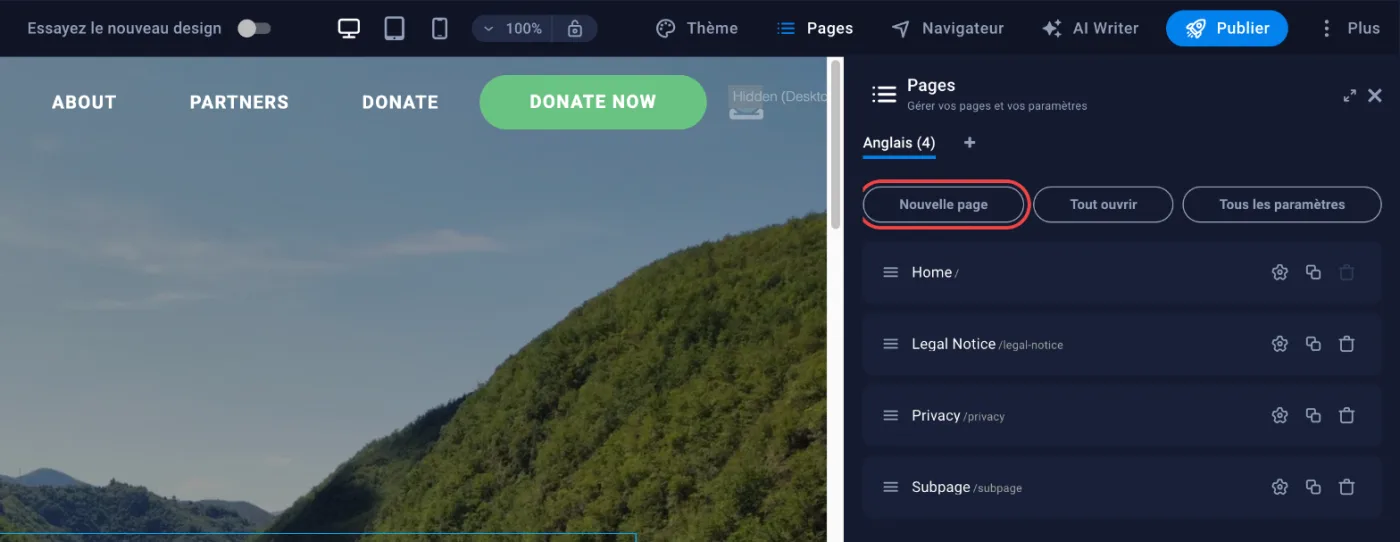
Publish the site
Click “Publish” in the editor's top bar. If cPanel then shows “Publish yourdomain.com”, click “Publish Now” and wait for “Published Successfully”. Finally click “Visit Site”, or open
https://yourdomain.com, to check the result. The free SSL certificate is installed automatically.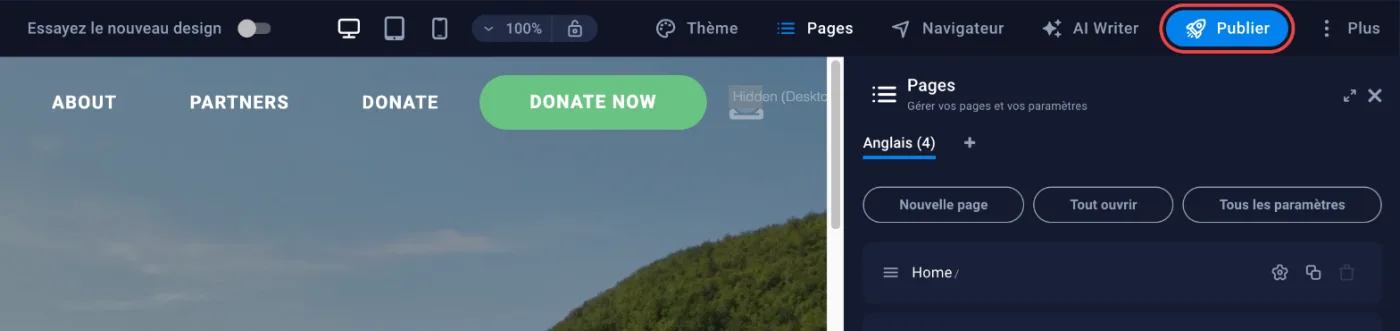
In the former interface (Jupiter)
Scroll the table
| Step | Meridian | Jupiter |
|---|---|---|
| Open Sitejet | “Websites & Apps” › “Manage” › “Build with Sitejet” | cPanel home › “Domains” › “Sitejet Builder” |
| Start on an existing domain | “Manage” › “Set Up Website” › “Sitejet Builder” › “Continue” | “Try Sitejet” on the domain's row in the Sitejet Builder table |
| Edit a published site | “Manage” › “Edit Site”, then “Publish” in the editor | “Edit Site” on the domain's row |
The common pitfall
The site starts in the “English” language with the template's sample text. Replace it page by page with your own content (the language shows in the “Pages” panel) before publishing. After that, your changes stay a draft until you click “Publish” again: the domain's “Overview” tab then shows “You have a draft site in Sitejet”.
If it doesn't work
- The “Website Builder” block does not appear, or the wizard offers neither Sitejet Builder nor WordPress and shows “This folder contains files”: your domain's
public_htmlfolder is not empty. Back up the old site from the “Backups” tab, delete those files with “Open File Manager”, then start again. - cPanel shows “Disable domain redirection to use Sitejet.”: your domain is redirected elsewhere. Remove the redirect in the domain's “Settings” tab, “Redirects” section, then start again.
- Publishing fails (“Publish Failed”): your plan's disk space may be full. Free up space in “File Manager”, then click “Retry”.
- The published site does not show: check that your domain points to the hosting (name servers), then clear your browser cache.
- You prefer WordPress: pick “WordPress” in the same wizard, see Install WordPress in cPanel.



