Is your website ready on your computer (HTML, CSS, images or a PHP application)? cPanel's File Manager publishes it from your browser, without an FTP client: everything in the public_html folder is served at yourdomain.com. Verified on cPanel 138 (Meridian interface) on 20 October 2026.
In the Meridian interface (current)
Open cPanel
In “My services”, click “Web Hosting”, then “Manage” for the hosting account in question, and finally “Open cPanel”.
Open File Manager
In the left sidebar, click “Files”, then the “File Manager” tab. It opens on your home directory (
/home/your-username): double-clickpublic_html. Another way in: “Websites & Apps”, “Manage” on your domain's row, the “Files” tab, then “Open File Manager”.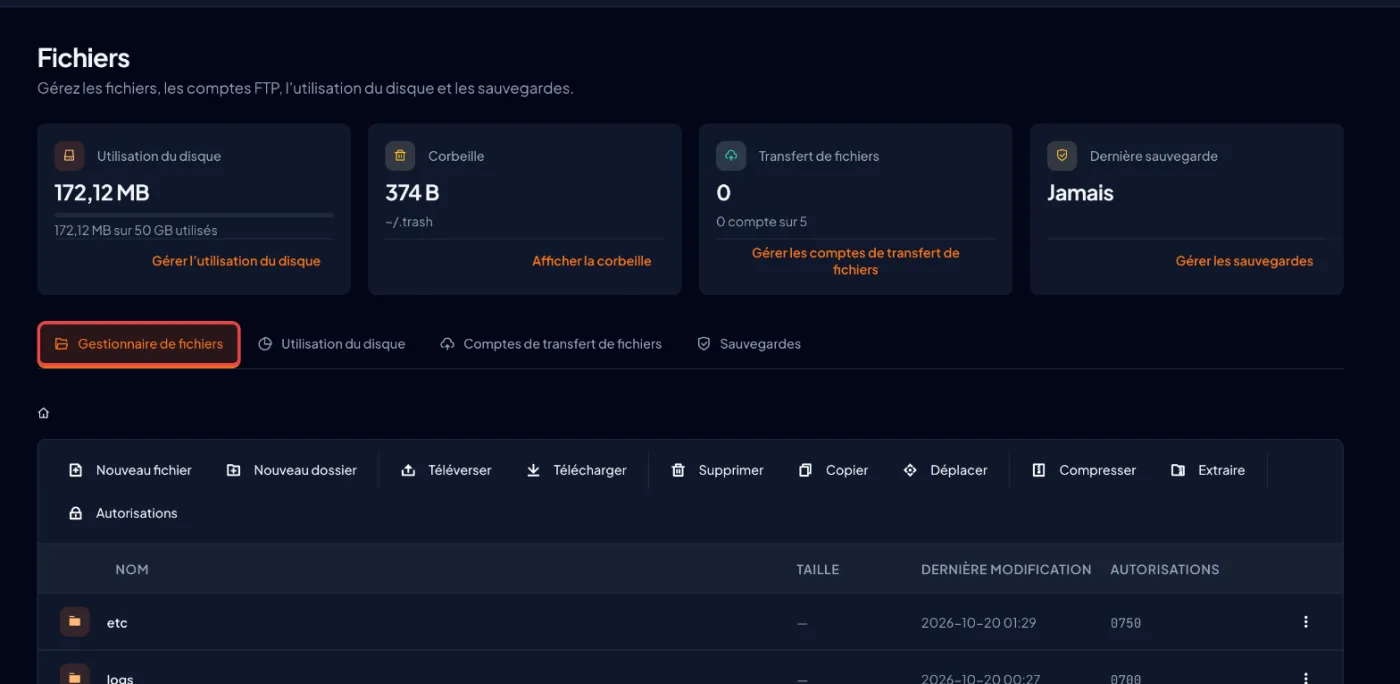
Prepare a .zip archive
On your computer, compress the contents of your site folder (not the folder itself) into a single
.zipfile: one upload is much faster than hundreds of small files, and File Manager does not accept uploading a whole folder.Upload the archive
Still in
public_html, click “Upload” in the toolbar. In the “Upload Files” window, drop your.zipor click to choose it, tick “Overwrite existing files” if you are replacing an older version, then click “Upload”. Wait for the upload to finish.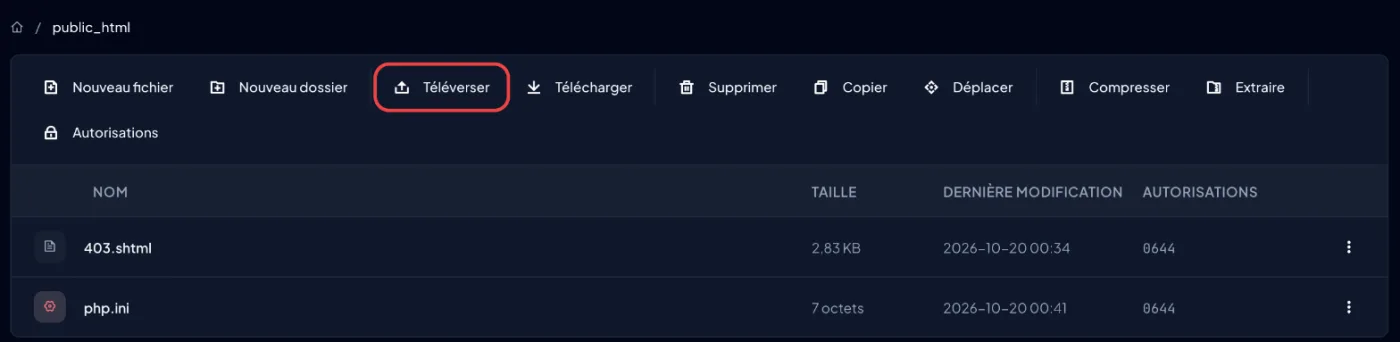
Extract the archive
Tick the
.zipand click “Extract”: its contents are unpacked intopublic_html. Check that your home page,index.htmlorindex.php, sits directly inpublic_html, then tick the now useless.zipand click “Delete”: it goes to the “Trash”.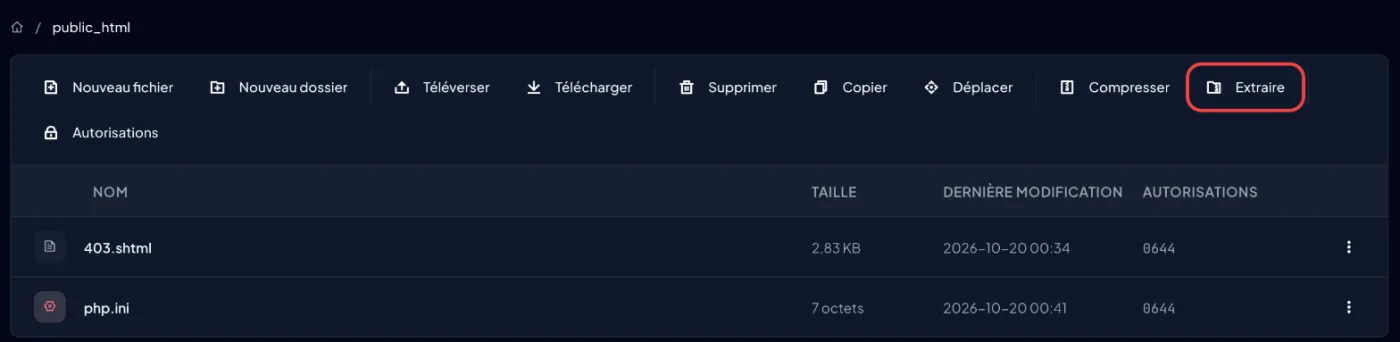
Test your site
Open
https://yourdomain.comin a private browsing window. The temporary holding page disappears on its own as soon as anindex.htmlorindex.phpis inpublic_html: you have nothing to delete to remove it.
In the previous interface (Jupiter)
Scroll the table
| Step | Meridian | Jupiter |
|---|---|---|
| Open the file manager | Sidebar › “Files” › “File Manager” tab | cPanel home page › “Files” section › “File Manager” icon, which opens in a new tab |
| Upload a file | “Upload” in the toolbar, “Overwrite existing files” box in the same window | “Upload” opens a separate upload page; then return to the folder with the back link at the bottom of the page |
| Switch interface | “Classic cPanel Theme” link in the header, if offered on your account | — |
Only delete your own files
public_html already holds files the server needs: .htaccess, php.ini, .user.ini, the .well-known folder (used for the SSL certificate) and the *.shtml error pages, including 403.shtml, the holding page. Do not delete them: they do not get in your site's way. If your archive contains its own .htaccess, the overwrite option replaces it, which is expected.
If it doesn't work
- The site only appears at
yourdomain.com/my-site/: the archive contained a folder. Open it, tick all its contents, click “Move” and enter thepublic_htmlfolder as the destination. - The holding page still shows: the home page is not directly in
public_html(see the previous point), or its name has a capital letter (Index.htmlis not recognised). Also test in a private window to rule out the browser cache. - An old page shows instead of your PHP site: the server serves
index.htmlbeforeindex.php. Delete the oldindex.htmlleft by your previous version. - The upload fails or stops: check the available disk space (it depends on your plan) and try again with a lighter archive, or upload the site in several archives. Deleted files stay in the trash (
~/.trash) and count towards your space: on the “Files” page, “View Trash” then “Empty Trash” frees that space, permanently.



