The SSL certificate lets your browser display the padlock and encrypt traffic between visitors and your site. In cPanel, AutoSSL automatically issues and renews a free Let's Encrypt certificate; you can check its status and restart it in just a few clicks. Verified on cPanel 138 (Meridian interface), on 20 October 2026.
On the Meridian interface (current)
Open cPanel
In "My services", click "Web Hosting", then "Manage" for the hosting account in question, and finally "Open cPanel".
Open the Security page
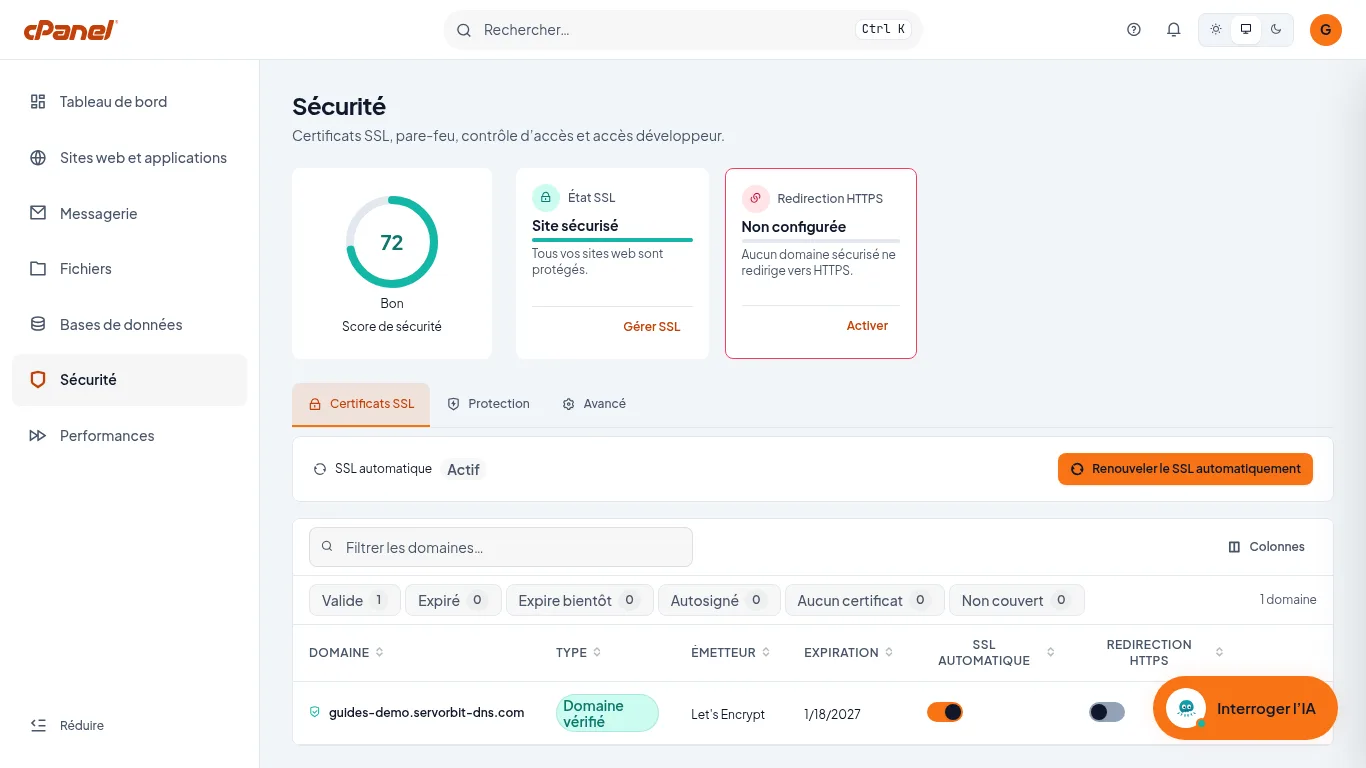
In the left-hand menu, click “Security”. The “SSL Certificates” tab opens. The “SSL Status” card at the top shows “Site Secured” when all your websites are protected.
Read the certificate status
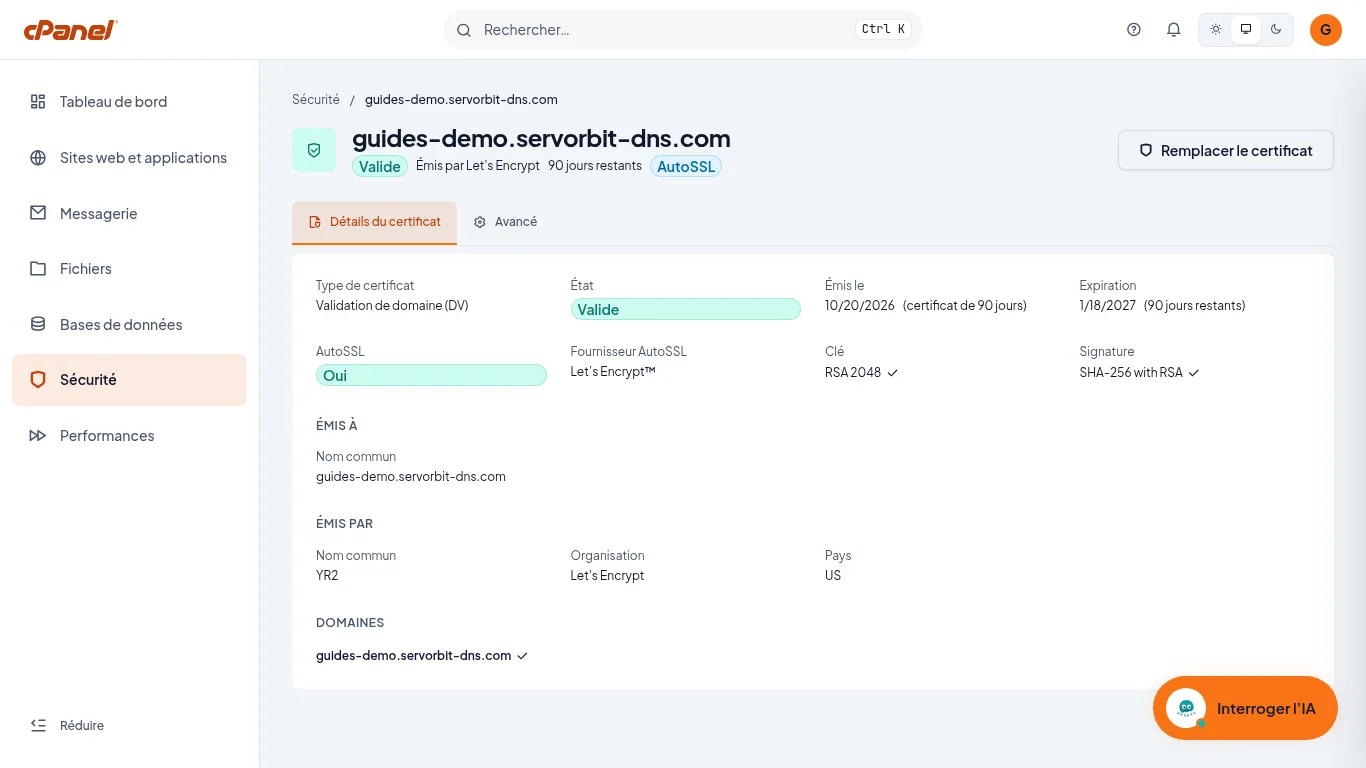
The table lists each domain with the “Type”, “Issuer”, “Expires” and “Automatic SSL” columns. “Domain Verified”, the issuer “Let's Encrypt” and the “Automatic SSL” switch turned on: everything is fine. Above the table, the “Expired”, “Expiring Soon”, “Self-Signed”, “No Certificate” and “Not Covered” filters count the domains with a problem. In the “Actions” column, the “Manage” button opens the certificate page: status, issue and expiry dates, AutoSSL provider.
Run AutoSSL if a domain has a problem
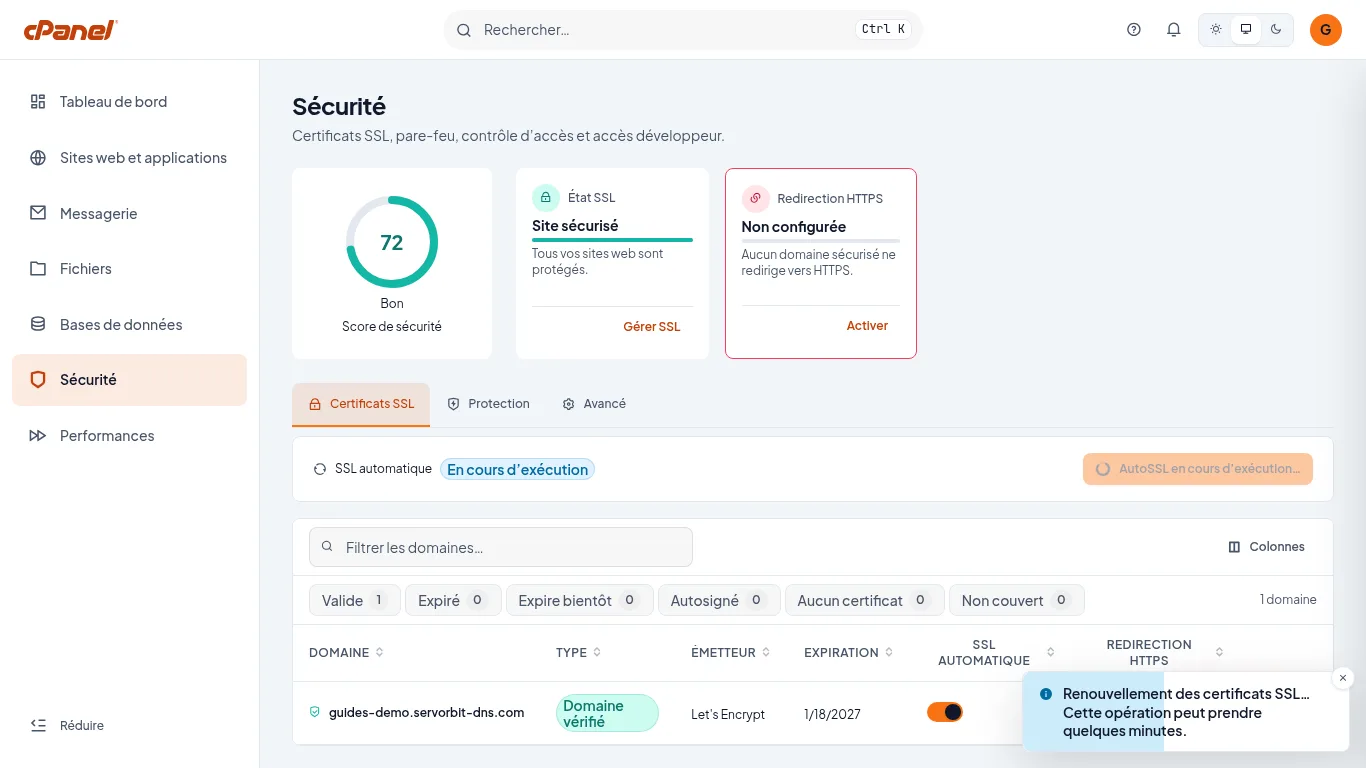
If one of these filters shows a number other than 0, click “Renew SSL automatically”. The “Automatic SSL” status changes while AutoSSL runs, and a message tells you the operation may take a few minutes.
Check the result
When the status is back to “Active”, reload the page: the domain should show “Domain Verified” and the “SSL Status” card “Site Secured”.
Automatic renewal
As long as the “Automatic SSL” switch is on for a domain, AutoSSL takes care of its certificate, as the certificate page confirms. The “Renew SSL automatically” button is mostly useful after a nameserver change or after adding a domain.
If it doesn't work
- A domain is still counted under “Self-Signed” or “No Certificate” after AutoSSL: it probably does not point to our server yet. Check its nameservers (Change a domain's nameservers), let DNS propagation complete, then run AutoSSL again.
- The “Automatic SSL” switch is off on a row: AutoSSL does not cover that domain. Turn it on, then click “Renew SSL automatically”.
- The button is greyed out while AutoSSL is running: the operation is not finished. Wait a few minutes, then reload the page.
- A subdomain is missing from the table: create it first (Create a subdomain in cPanel), then run AutoSSL again.



