The PHP version sets the language your server uses to run your site (WordPress, for example); you choose it domain by domain. Verified on cPanel 138.0.18 (Meridian interface), on 23 October 2026. The interface labels below are quoted as they appear in the French cPanel interface, the only one we could view without changing the account language.
On the Meridian interface (current)
Find the current version
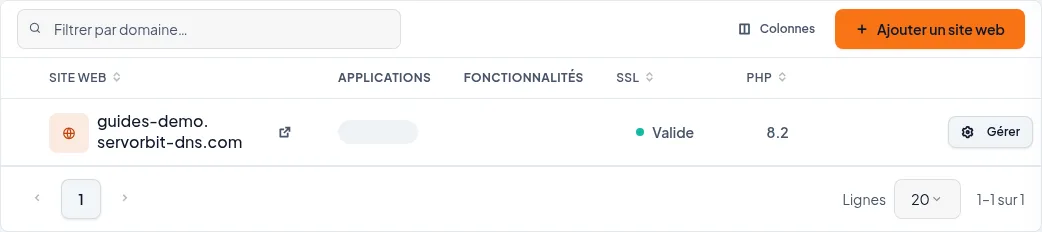
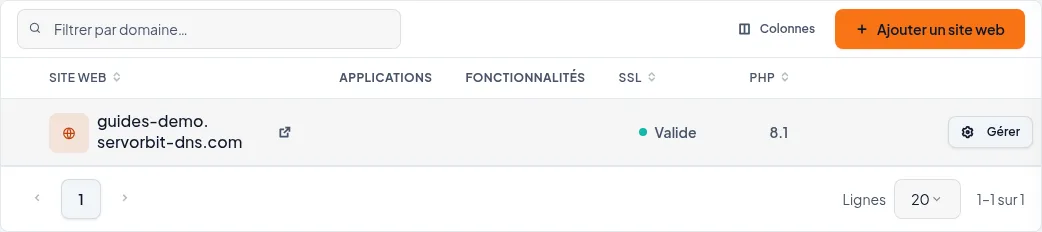
In cPanel, click « Sites web et applications » in the left-hand menu. The « PHP » column of the table shows the version each domain uses: note yours before changing it.
Open the site's page
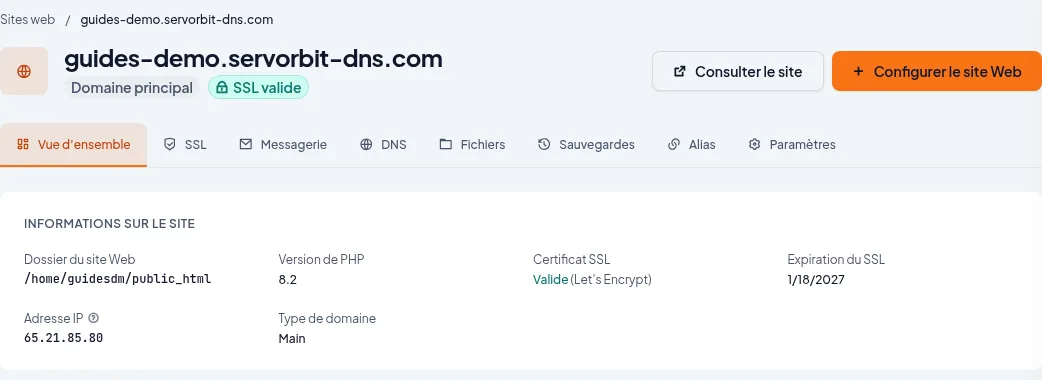
On your domain's row, click « Gérer ». The « Vue d'ensemble » tab already shows « Version de PHP » in the « Informations sur le site » block.
Open the « Paramètres » tab
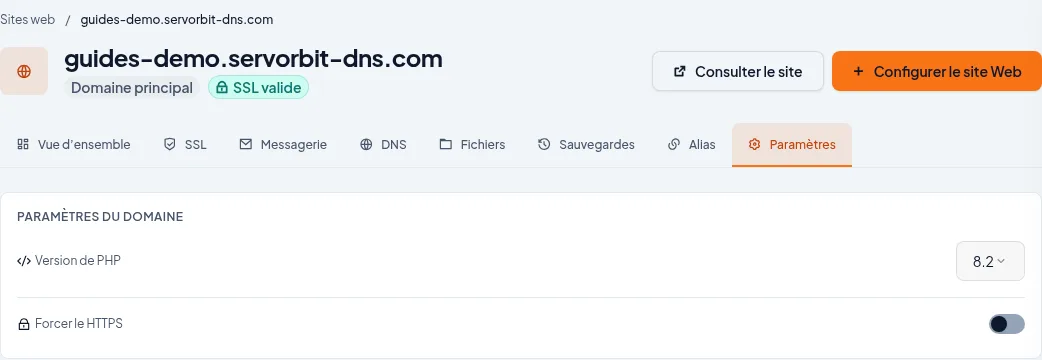
Click the « Paramètres » tab. In the « Paramètres du domaine » section, the « Version de PHP » row has a drop-down list.
Choose the new version
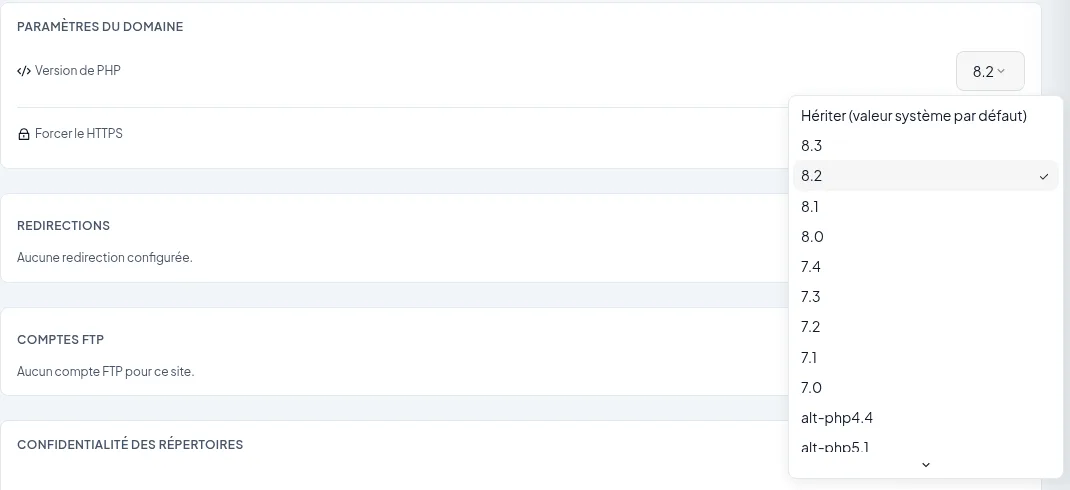
Click the list: it offers « Hériter (valeur système par défaut) », then the available versions (8.3, 8.2, 8.1, etc.), the current one being ticked. Click the version you want. No save button is displayed: your choice replaces the value in the list straight away.
Check the change
Go back to « Sites web et applications » and reload the page: the « PHP » column should show the new version.
Keep the original version at hand
Note the version shown before changing it. If your site stops working as before, reopen the same list and pick it again: that is what we did to return to the starting state. The versions offered depend on your plan.
If it doesn't work
- The « PHP » column still shows the old version: reload the « Sites web et applications » page before trying again.
- The version you want is not in the list: only the versions offered by the list are available on your plan; contact support for another version.
- You see « Hériter (valeur système par défaut) »: the domain then follows the server's default version; pick a specific version to fix it.
- You can't find « Version de PHP »: check that you are on the right domain's page, then on the « Paramètres » tab (or « Vue d'ensemble » for read-only).



