AI App Hosting publishes a Node.js application on your domain, over HTTPS, from the code you point it to: cPanel detects the framework, builds the application and starts it. Checked on cPanel 138 (Meridian interface) on 23 October 2026. Labels are quoted as displayed on the French-language demo account.
On the Meridian interface (current)
Open cPanel
In “My services”, click “Web Hosting”, then “Manage” for the hosting account in question, and finally “Open cPanel”. Details: Log in to cPanel from your client area.
Choose the domain and AI App Hosting
In the side menu, click « Sites web et applications », then « Ajouter un site web ». At the question « Quel domaine allez-vous utiliser ? », pick the « Utiliser » card followed by your domain (or « Créer un sous-domaine »), then click « Continuer ». At « Comment souhaitez-vous créer votre site ? », choose « AI App Hosting » (“Deploy Node.js applications from Git™ or a file”). A notice warns that the application will answer all traffic to the domain. Click « Continuer ».
Check the configuration
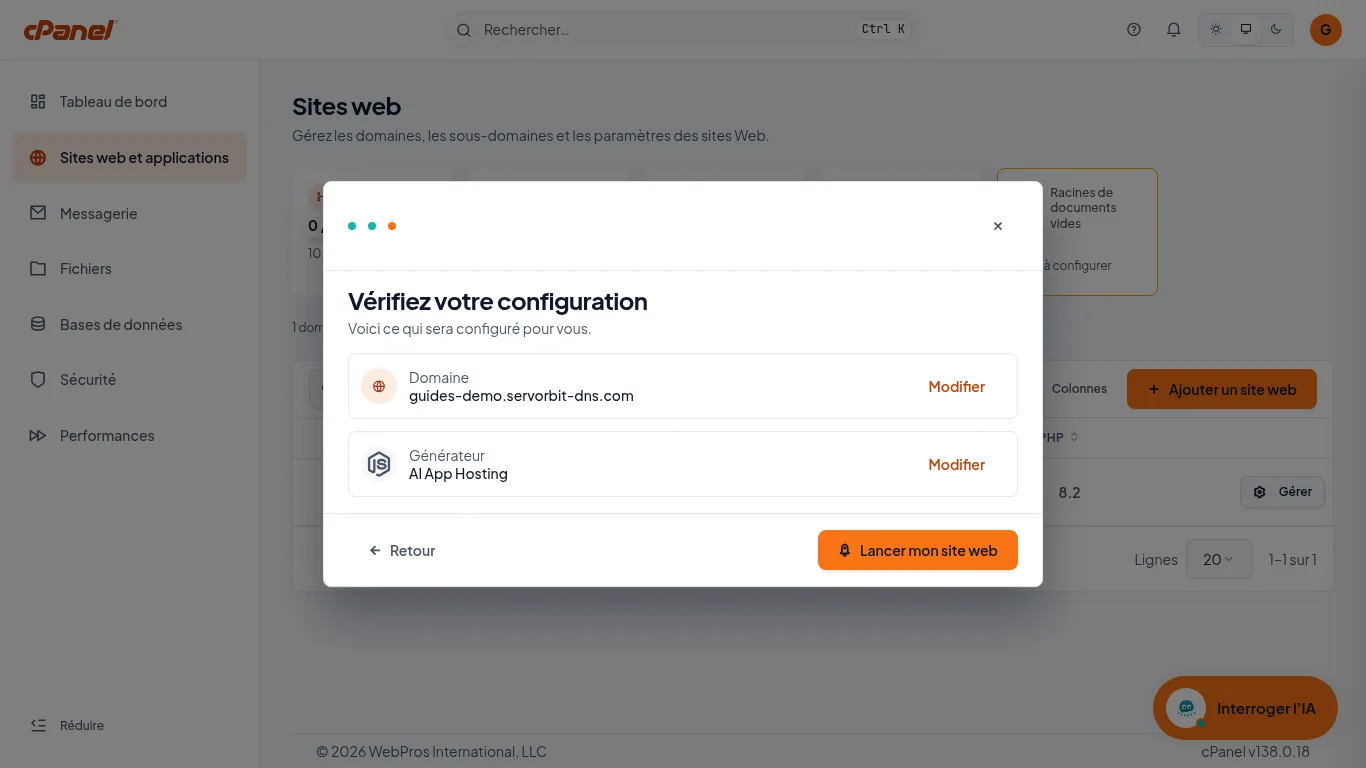
The « Vérifiez votre configuration » screen summarises the « Domaine » and the « Générateur », « AI App Hosting »; a « Modifier » link lets you go back on each. Click « Lancer mon site web ».
Give the code source
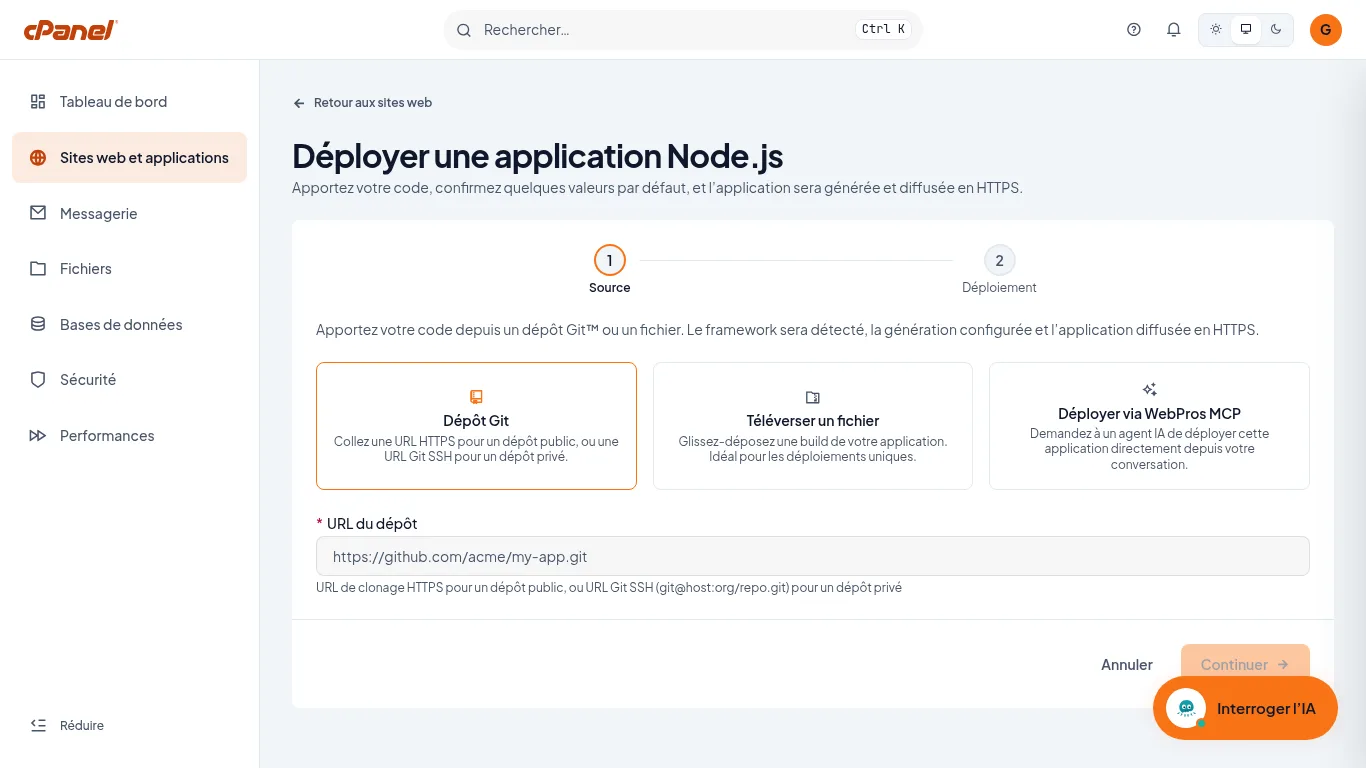
The « Déployer une application Node.js » page opens at the « Source » step, with three cards: « Dépôt Git », « Téléverser un fichier » and « Déployer via WebPros MCP ». With « Dépôt Git », paste in « URL du dépôt » the HTTPS URL of a public repository, or the Git SSH URL of a private one, then click « Continuer ».
Choose the run mode and deploy
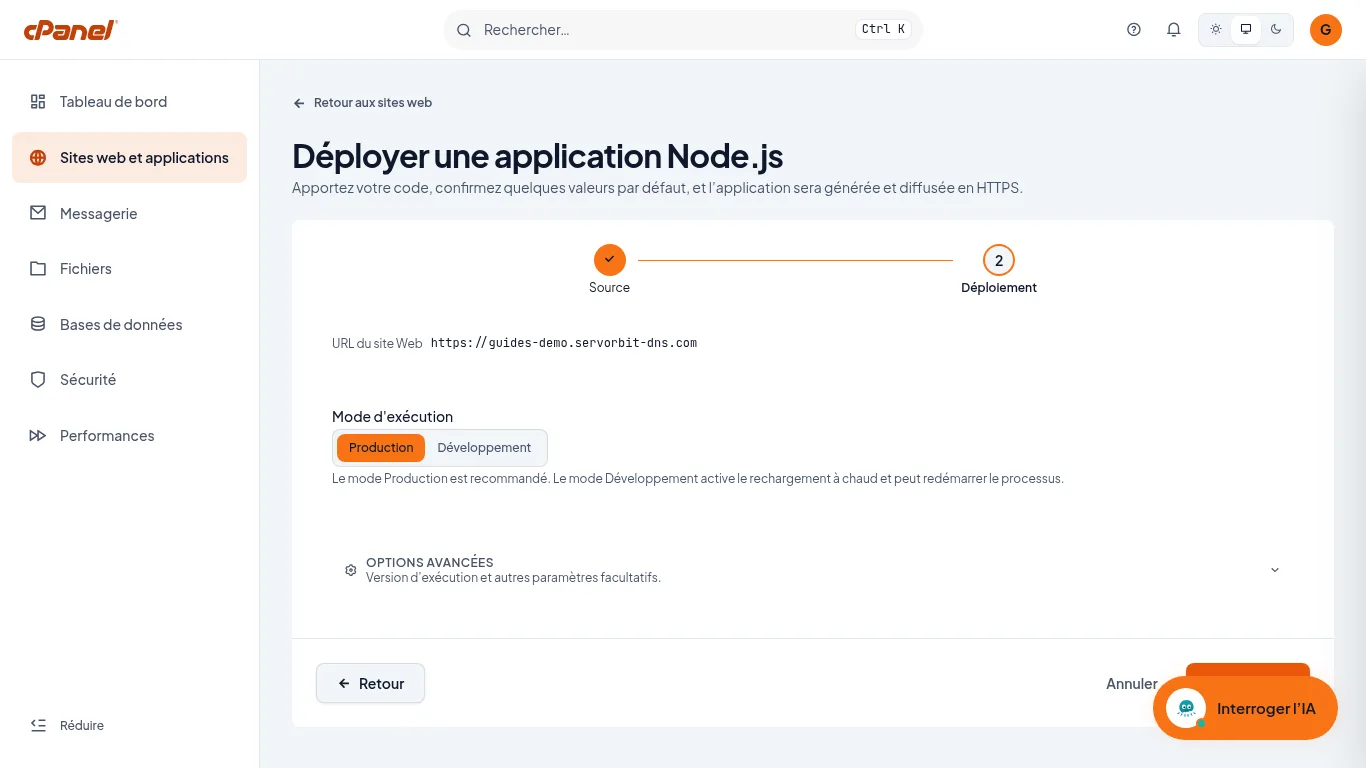
The « Déploiement » step recalls the « URL du site Web » and offers the « Mode d'exécution »: « Production » (recommended) or « Développement » (Development: hot reload, the process may restart). The « Options avancées » section groups the runtime version and other optional settings. Click « Déployer »: cPanel shows « Déploiement de » followed by the application name, with a progress bar; « Afficher les journaux » opens the « Journal de déploiement ». The « Déployer » button was seen on screen, without a screenshot.
Check that the application is running
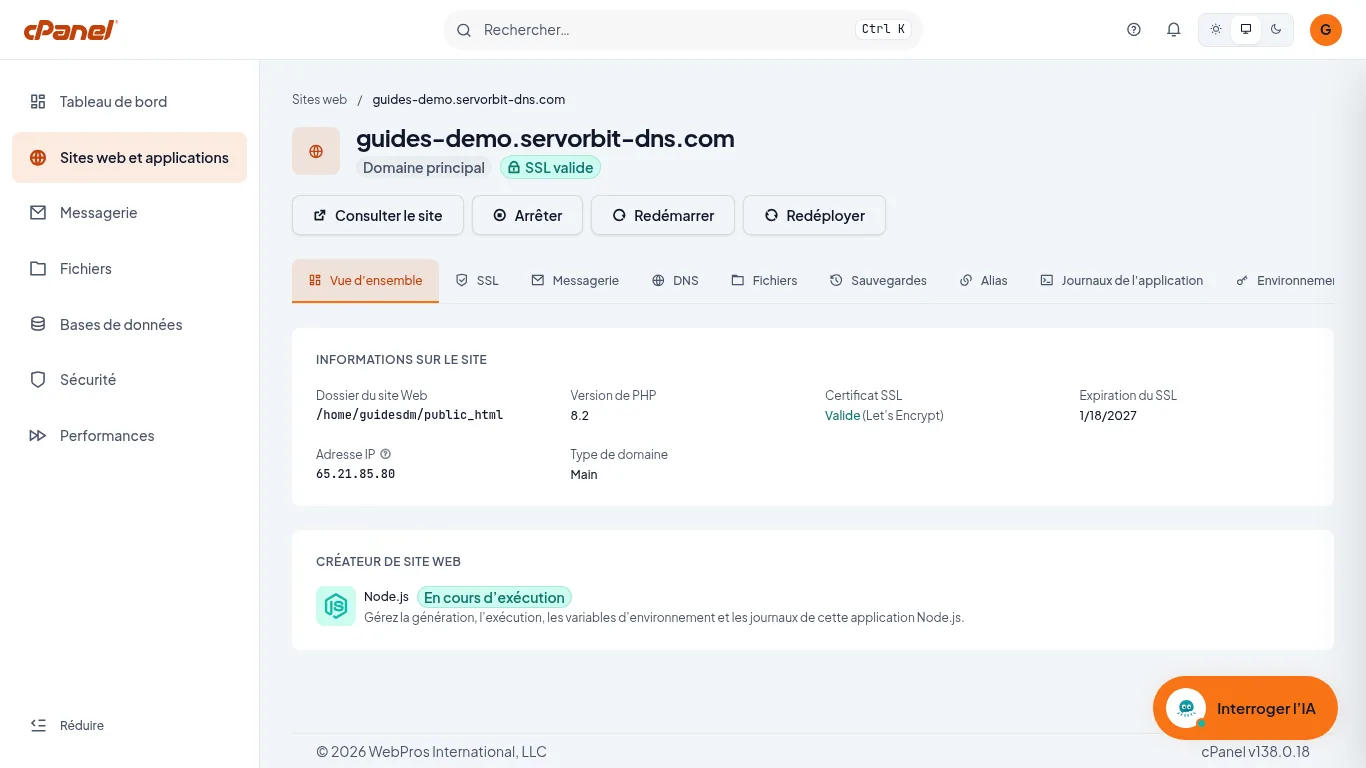
Once the deployment is done, the domain page opens on the « Vue d’ensemble » tab. The « Créateur de site Web » section shows « Node.js » and « En cours d’exécution », and the « Consulter le site », « Arrêter », « Redémarrer » and « Redéployer » buttons drive the application. The « Journaux de l’application », « Environnement de l’application » and « Configuration de l’application » tabs, the last one with « Commande de génération » and « Commande de démarrage », are for monitoring: a command change takes effect at the next deployment.
The common trap
Your application answers all traffic to the domain you chose: whatever that domain displayed until then is taken offline. Existing files stay on the disk, but the application is what answers. To avoid touching a live site, first read Create a subdomain in cPanel.
If it doesn't work
- « Continuer » stays greyed out at the « Source » step: the « URL du dépôt » field is required. Enter the full clone URL, ending in
.git. - Your repository is private: cPanel asks for a Git SSH URL, such as
git@host:organisation/repo.git, instead of the HTTPS URL. - You have no Git repository: choose « Téléverser un fichier » or « Déployer via WebPros MCP » to deploy from an AI agent.
- The deployment does not end as expected: read the « Journal de déploiement » (« Afficher les journaux »), then the « Journaux de l’application » tab.
- You want to remove the application: « Configuration de l’application » tab, « Zone sensible » section, « Supprimer l’application », then type the application name to confirm. The domain and the files in its folder are kept, and the domain serves them again.



