A domain's DNS zone says where its website, its email and its subdomains go: from the domain's page you add, find or delete records. Verified on cPanel 138.0.19 (Meridian interface), on 27 October 2026. Labels are quoted as they appear in the French cPanel interface, the only one we could view without changing the account's language.
In the Meridian interface (current)
Open the domain's page
In cPanel, click “Sites web et applications” in the left menu. In the table, click “Gérer” on your domain's row.
Open the “DNS” tab
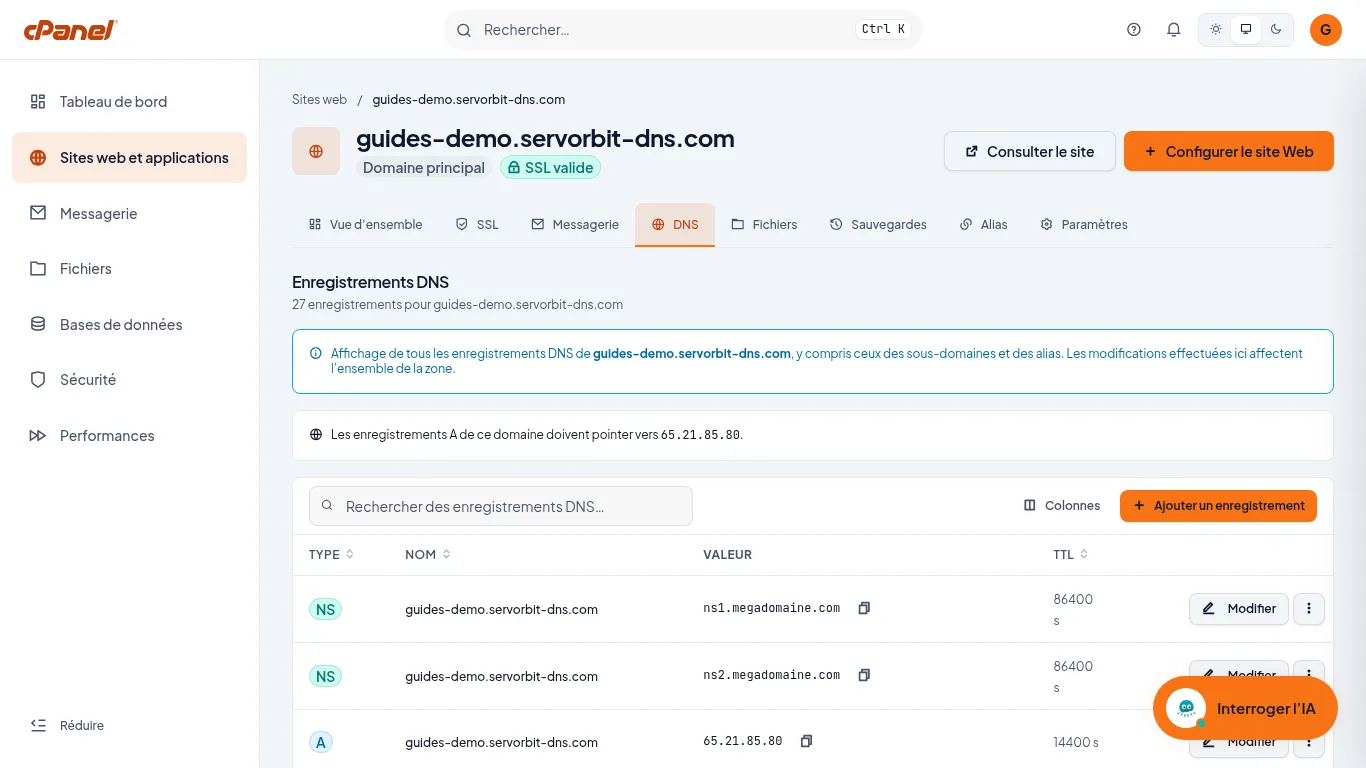
Click the “DNS” tab. The “Enregistrements DNS” page shows how many records the zone has and lists them in a table (“Type”, “Nom”, “Valeur”, “TTL”). A banner states that changes made here affect the whole zone, including subdomains and aliases.
Add a record
Click “Ajouter un enregistrement”. In the “Ajouter un enregistrement DNS” window, choose the “Type”, enter the “Nom” (for example
essai) and the “Adresse”, then keep or change the “TTL” (14400 by default). Click “Ajouter un enregistrement” to confirm. For an A record, the expected address is the one given in the banner “Les enregistrements A de ce domaine doivent pointer vers…”.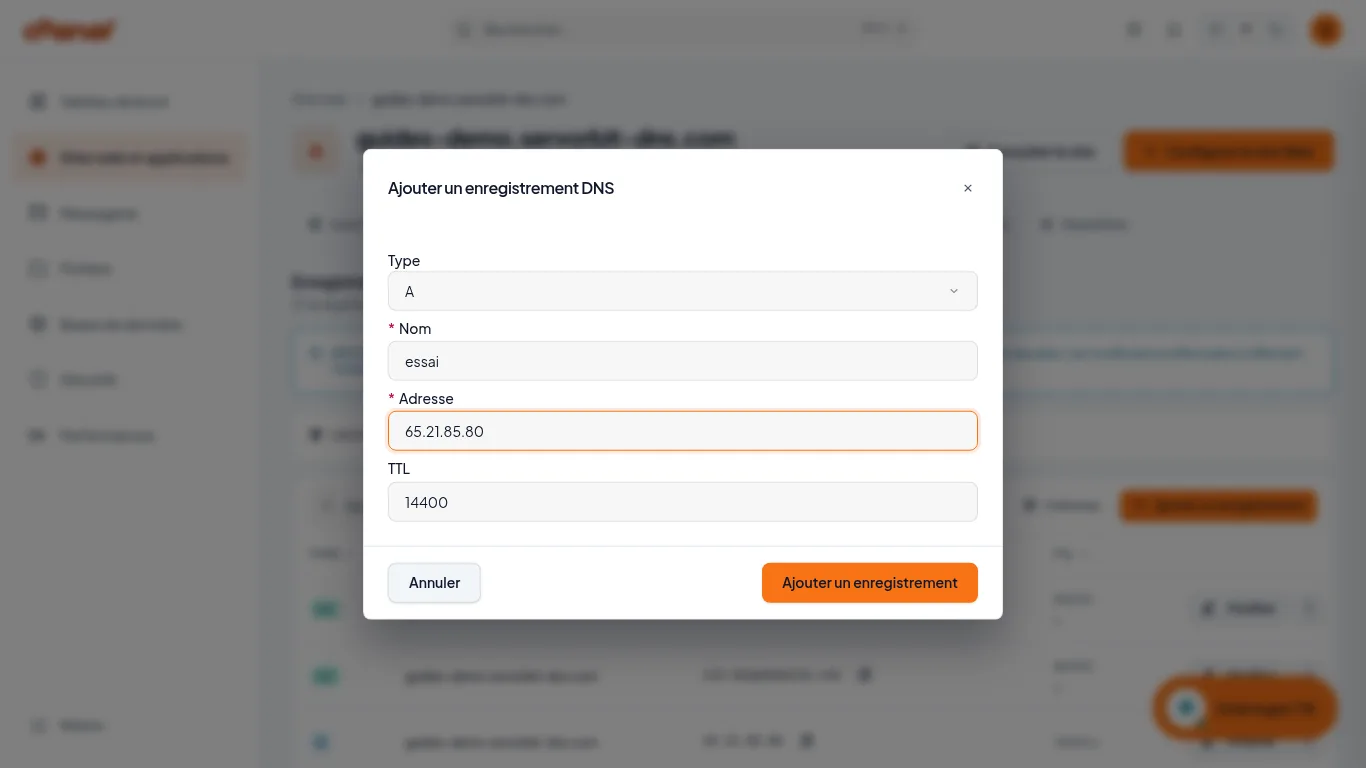
Find the record
The page's counter goes up by one record. Type the name in the “Rechercher des enregistrements DNS…” field: the row appears with its full name (here
essai.followed by your domain), its value and its TTL, and the “Modifier” and “Plus d'actions” buttons.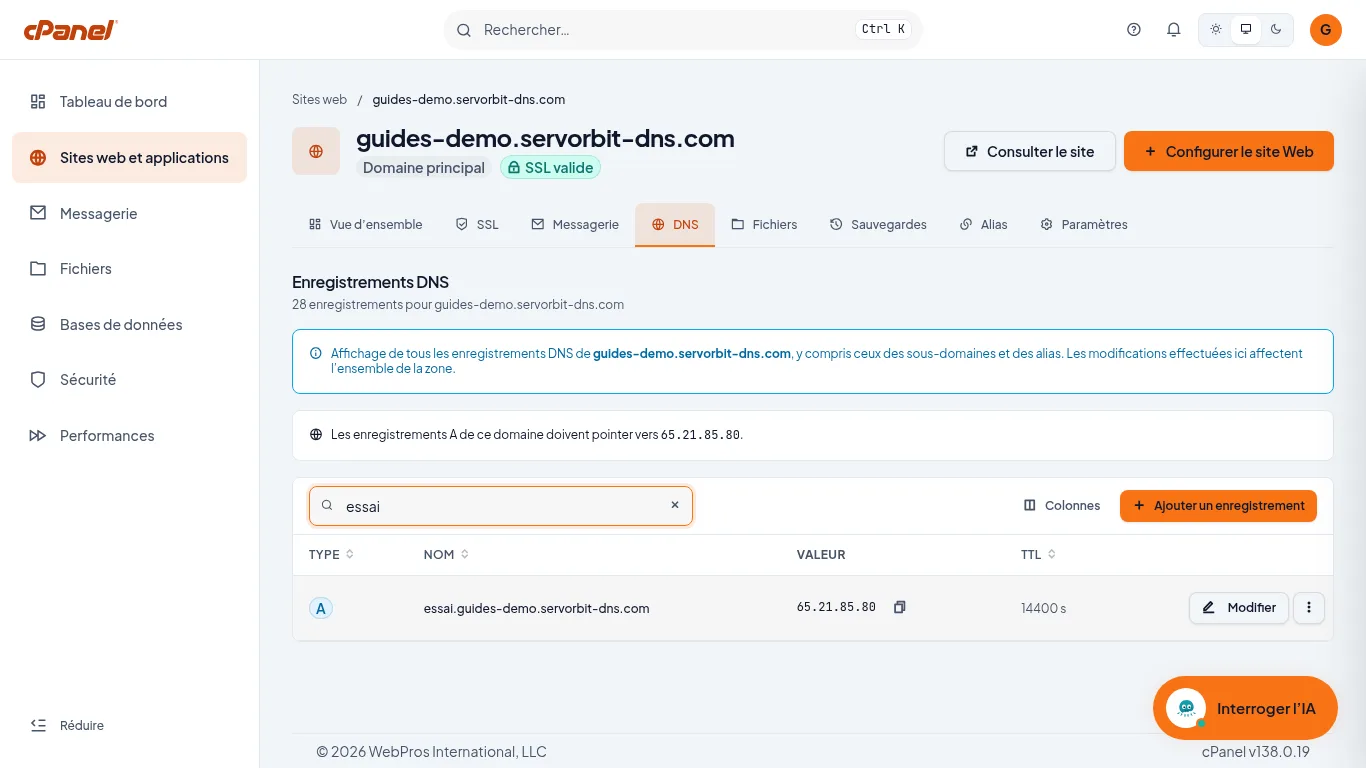
Delete a record you no longer need
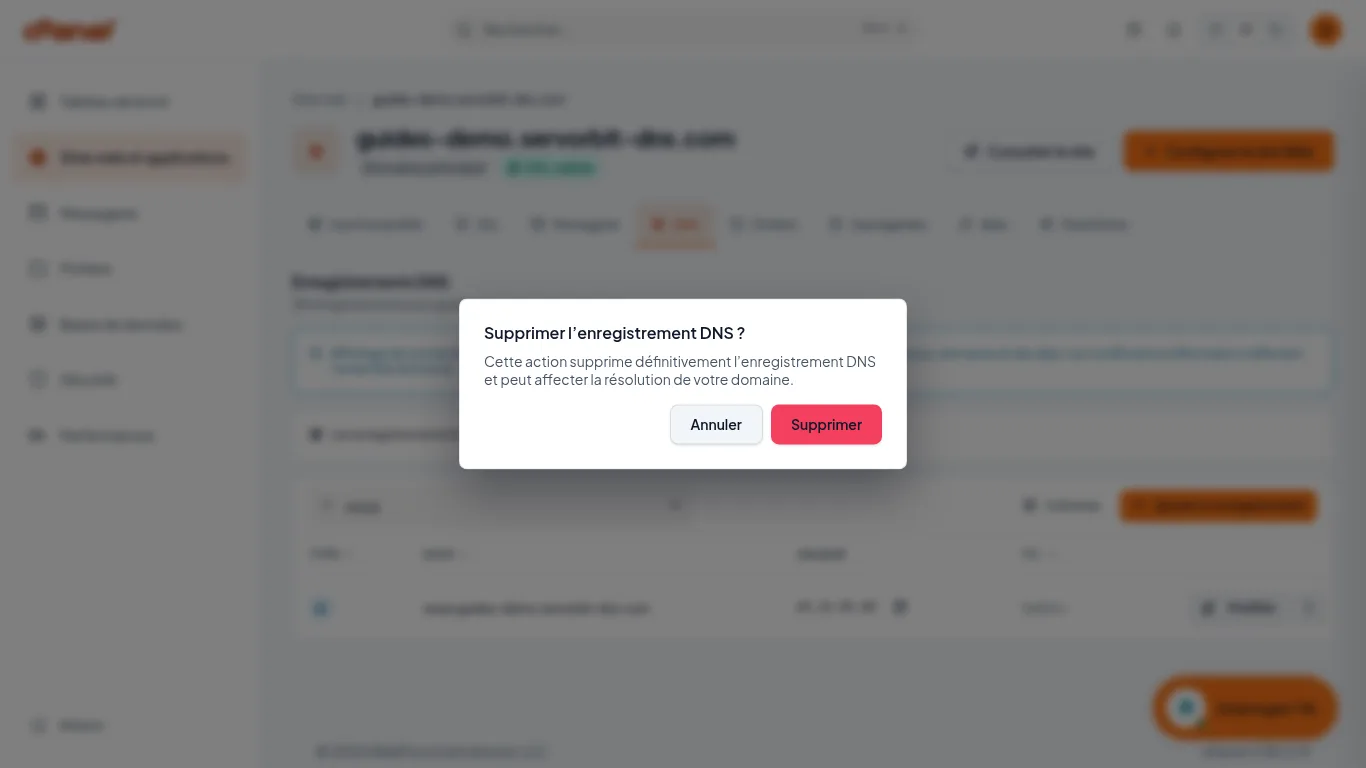
On the row, click “Plus d'actions”, then “Supprimer”. cPanel asks “Supprimer l'enregistrement DNS ?” and warns that the action is permanent and may affect your domain's resolution. Click “Supprimer” to confirm, or “Annuler”.
Write it down first
Every existing record has a “Modifier” button. Before changing or deleting a record that works, note its type, name, value and TTL: deletion is permanent, and the zone also drives your email and subdomains. The record count at the top of the page lets you check what you did.
If it doesn't work
- You can't find the “DNS” tab: make sure you are on the right domain's page (“Sites web et applications” then “Gérer”), not on the list of sites.
- You can't see the record you added: clear the “Rechercher des enregistrements DNS…” field, or search for the name alone, without your domain.
- You deleted a record by mistake: click “Ajouter un enregistrement” and recreate it with the values you noted.



