Every mailbox has a storage quota, that is the space it may occupy. You check and change it in cPanel, one mailbox at a time, without recreating it. Checked on cPanel 138.0.19 (Meridian interface) on 29 October 2026. The labels are quoted as the French interface displays them, which is how we saw them.
In the Meridian interface (current)
Open the email page
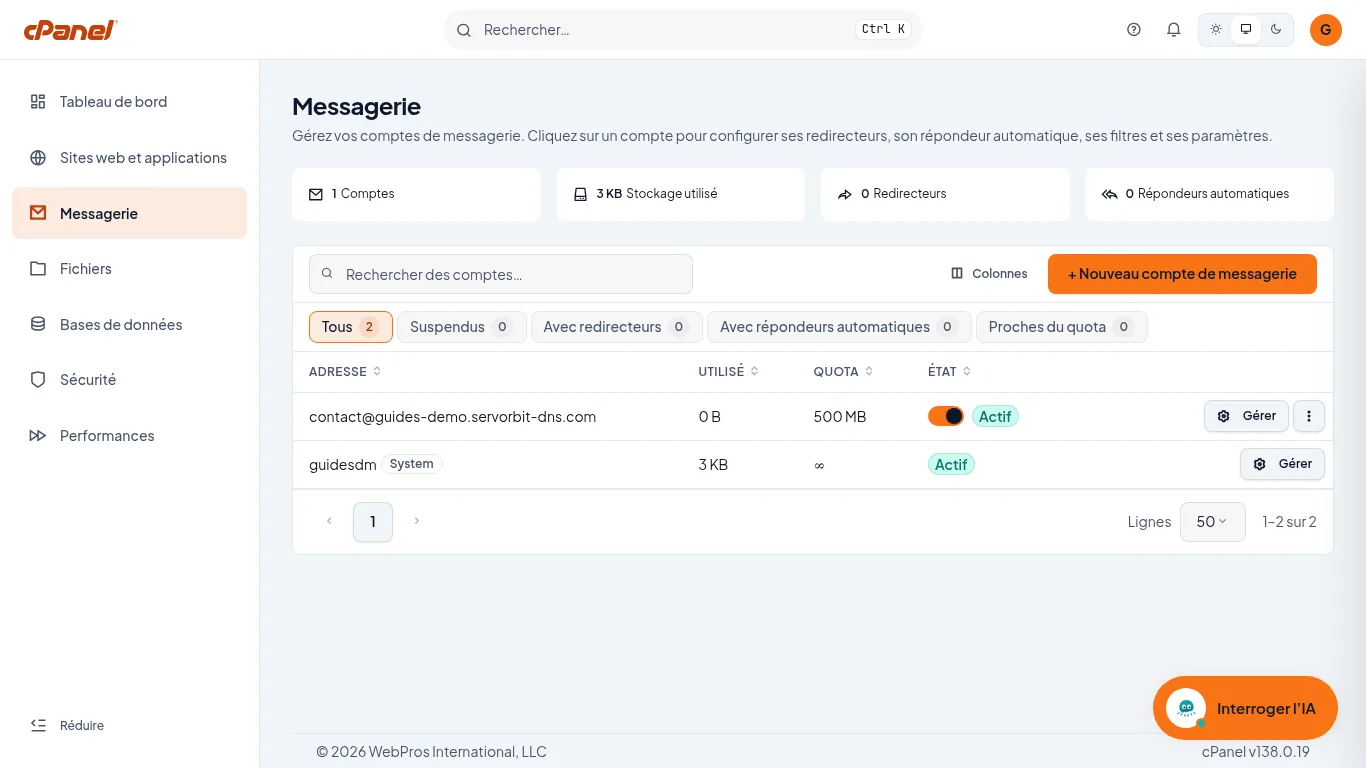
In cPanel, click “Messagerie” (Email) in the left sidebar. The table lists each address with the columns “Adresse”, “Utilisé”, “Quota” and “État”: you see at a glance which mailboxes are filling up.
Open the mailbox
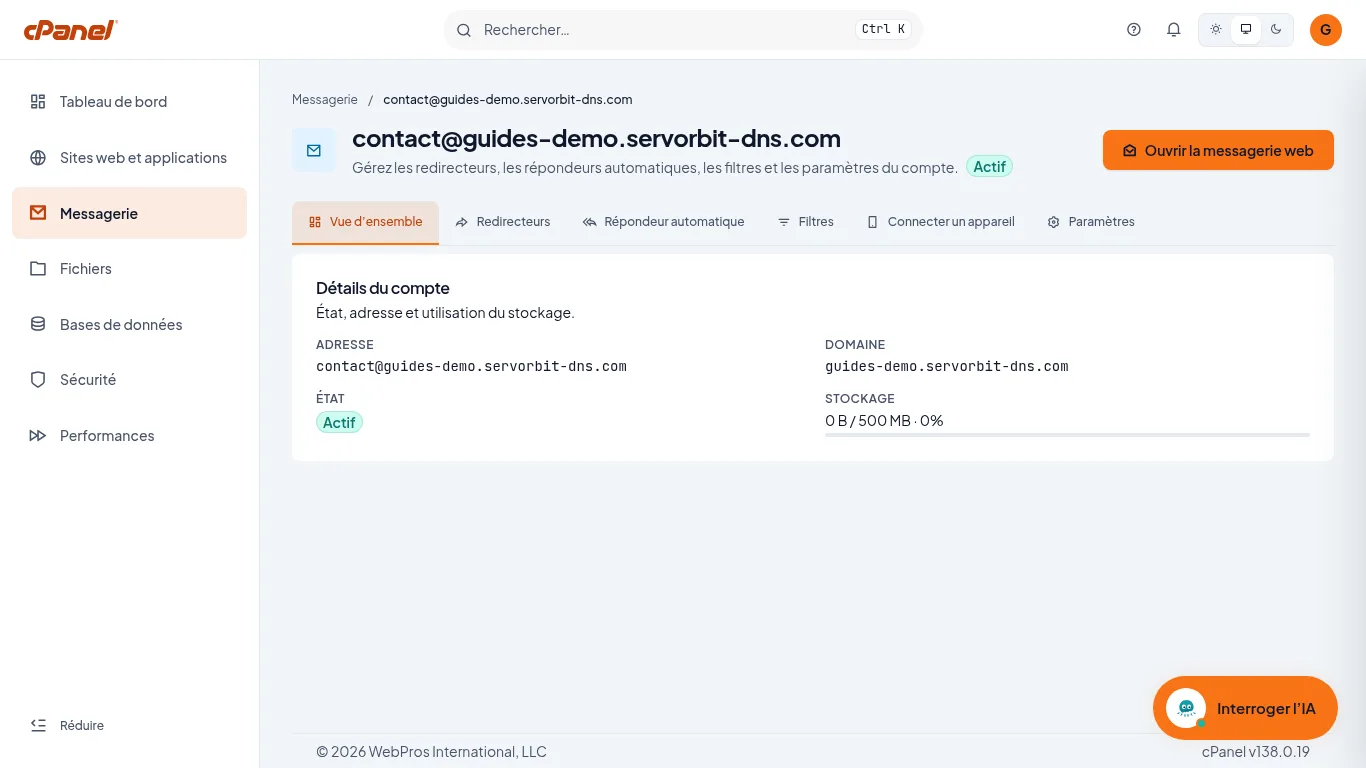
On the mailbox's row, click “Gérer”. In the “Vue d'ensemble” tab, the “Stockage” item shows the space used out of the quota, for example “0 B / 500 MB”, with a progress bar.
Go to the settings
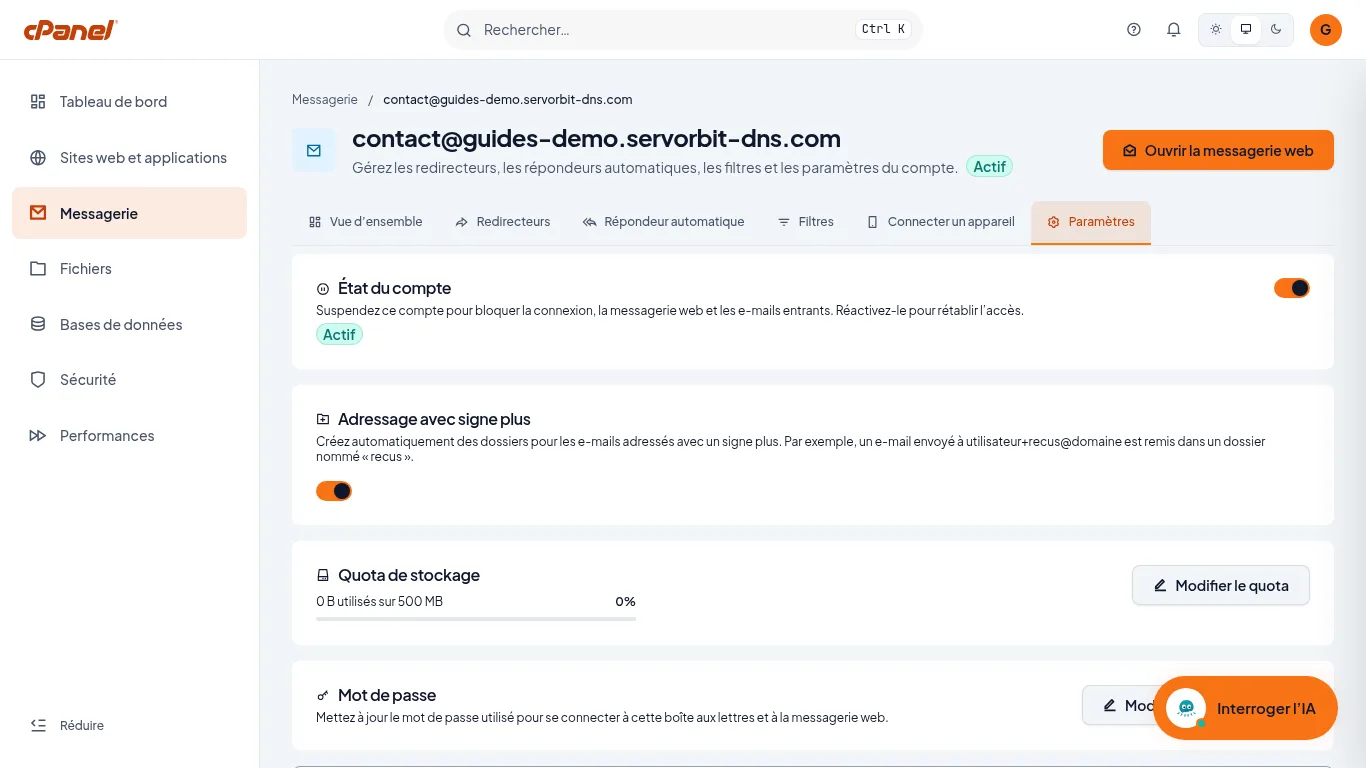
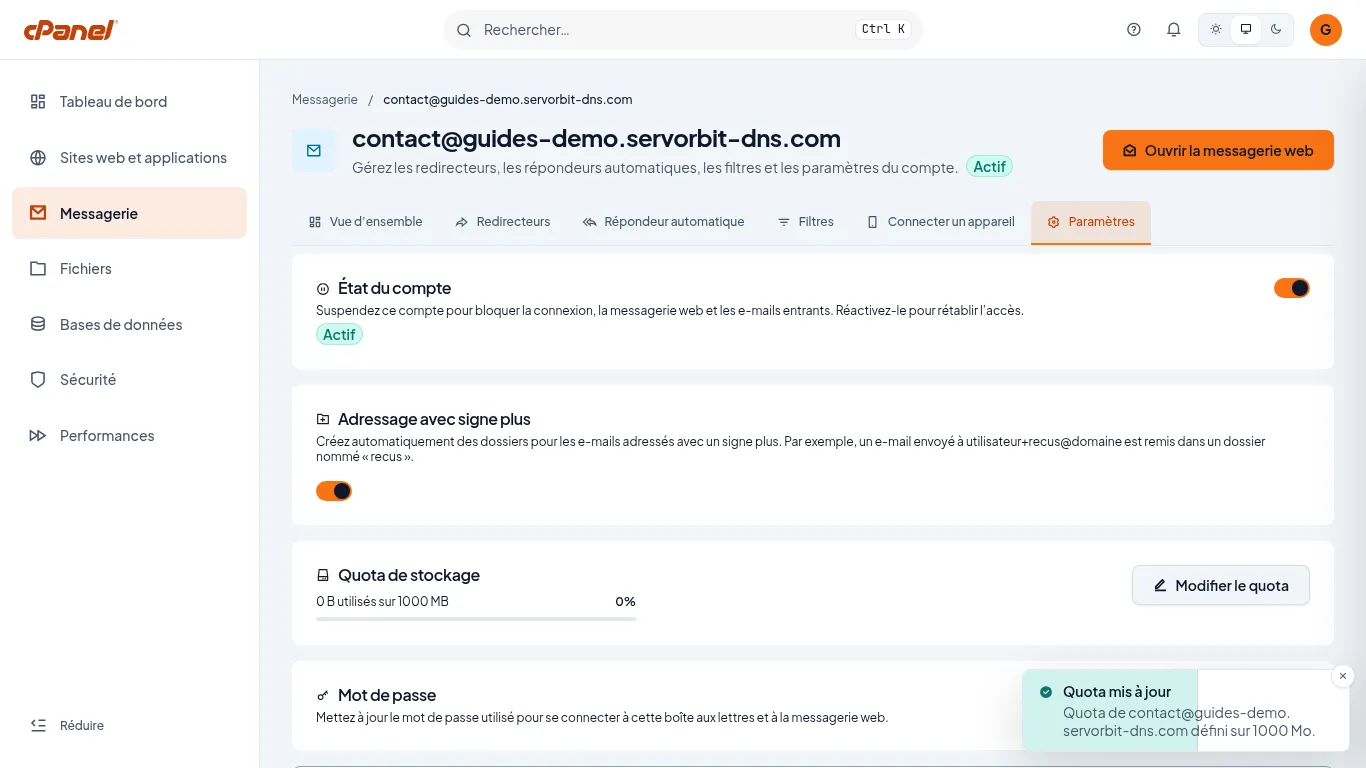
Click the “Paramètres” tab. The “Quota de stockage” section shows the space used out of the current quota. Click “Modifier le quota”.
Enter the new quota
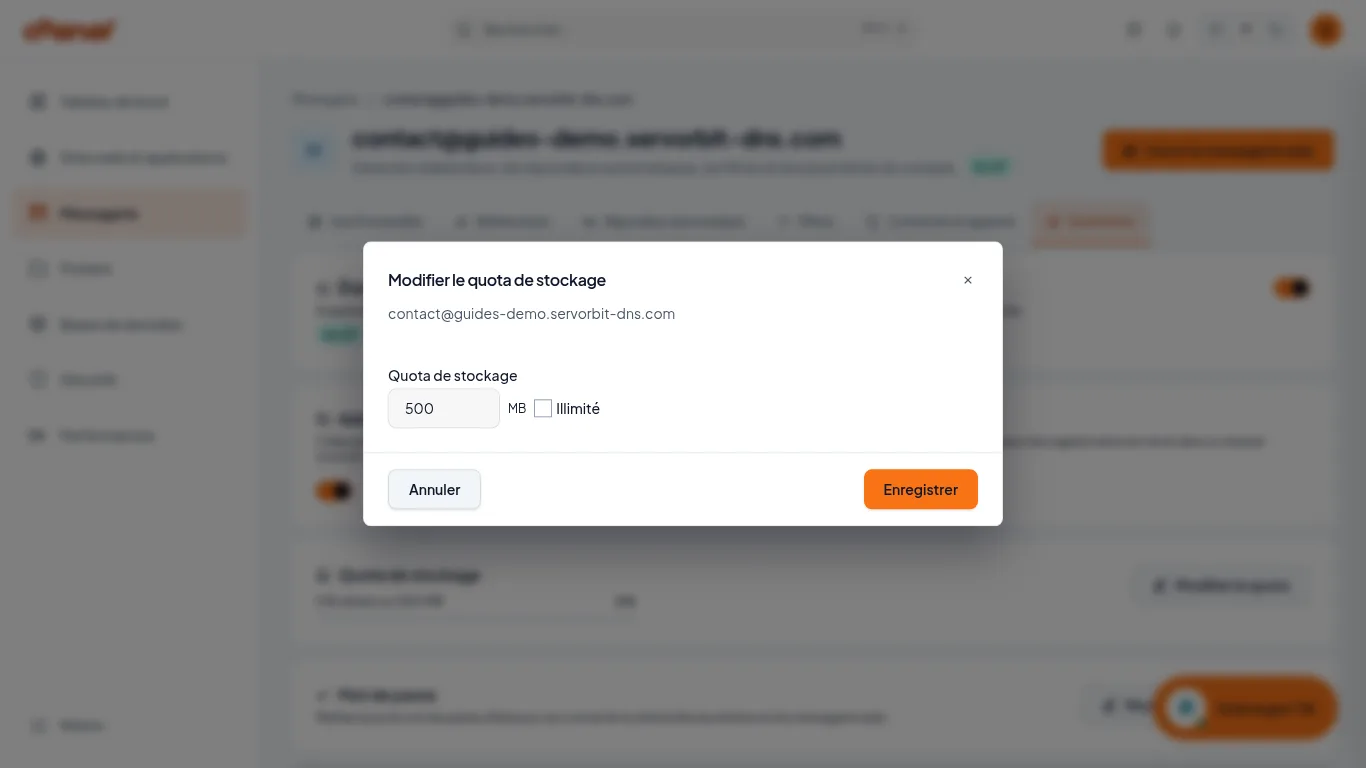
In the “Modifier le quota de stockage” window, which repeats the mailbox address, type the new value in the “Quota de stockage” field (in MB). Tick “Illimité” to set no limit, within the limits of your plan. Click “Enregistrer”.
Check the result
The “Quota mis à jour” message confirms the change, and the “Quota de stockage” section shows the new value.
The common pitfall
The quota is set one mailbox at a time: the “Modifier le quota de stockage” window shows the address concerned, so check it is the right one before clicking “Enregistrer”.
If it doesn't work
- You can't find “Modifier le quota”: you are on the “Vue d'ensemble” tab. Switch to the “Paramètres” tab.
- The old value still shows: reload the page, then read the “Quota” column of the “Messagerie” table again.
- You don't have a mailbox yet: follow the guide Create a business email address in cPanel.


