The password of a mailbox is changed in cPanel, one mailbox at a time, without touching the address or the messages. Checked on cPanel 138.0.19 (Meridian interface) on 29 October 2026.
In the Meridian interface (current)
Open Email
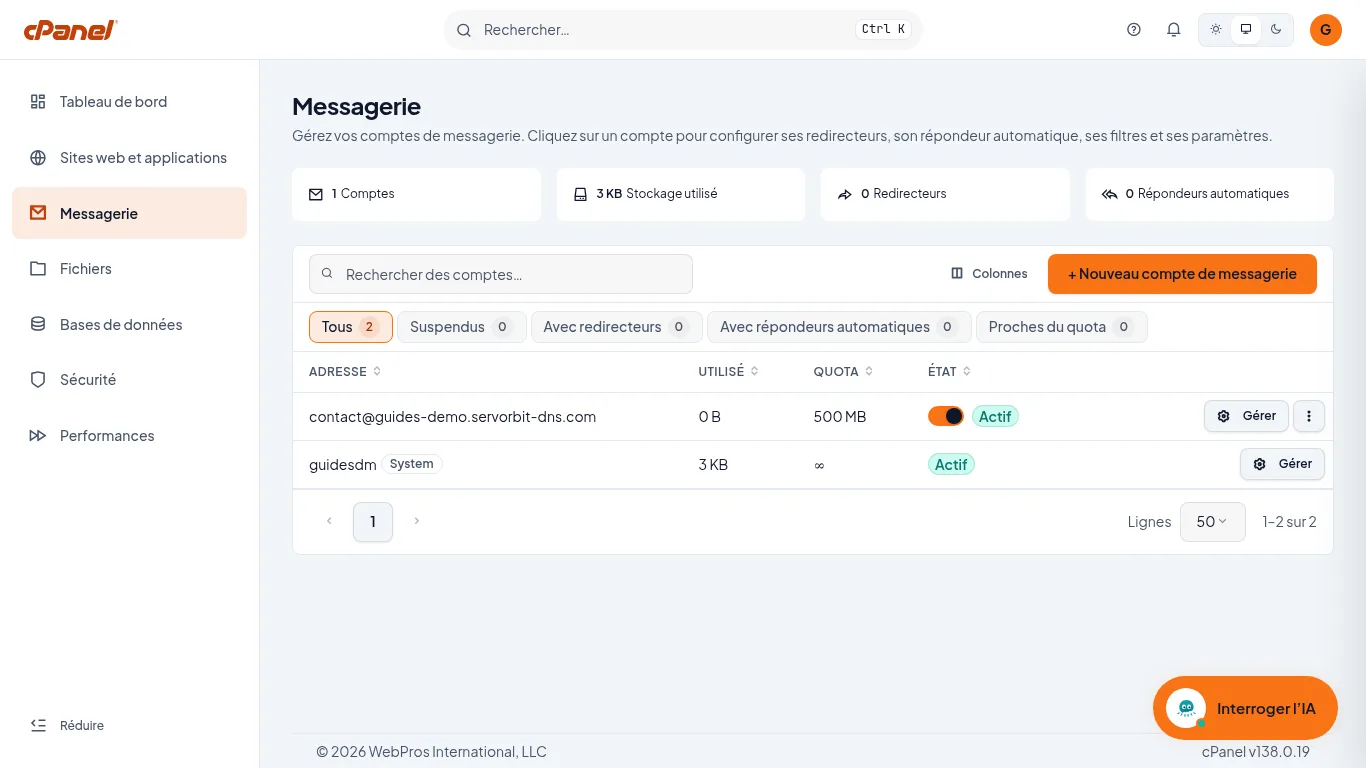
In cPanel, click “Messagerie” (Email) in the left sidebar. The page lists your mailboxes with, for each, the space “Utilisé” (used), the “Quota” and the “État” (status).
Open the mailbox
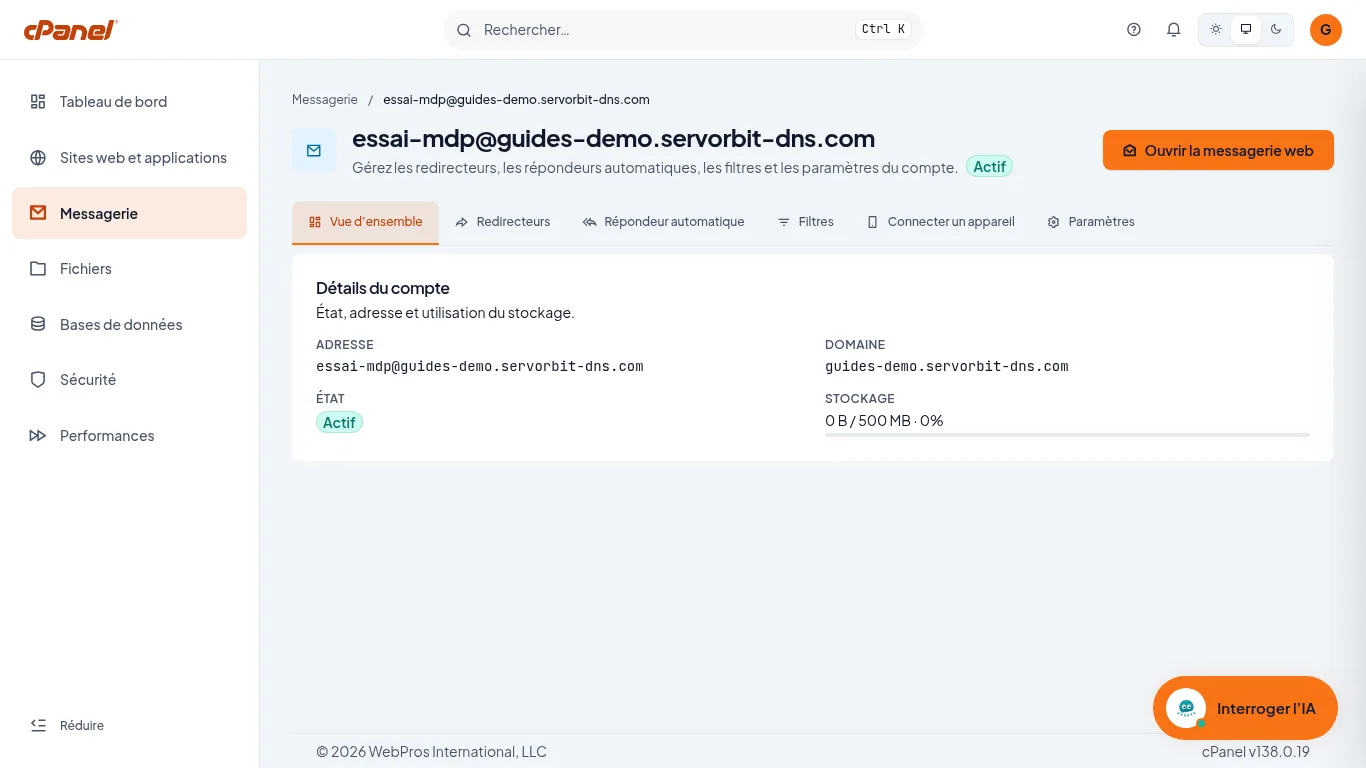
On the row of the address whose password you are changing, click “Gérer” (Manage), the button at the end of the row. The page of that mailbox opens, and it shows a row of tabs at the top: “Vue d’ensemble”, “Redirecteurs”, “Répondeur automatique”, “Filtres”, “Connecter un appareil” and “Paramètres” (Settings).
Go to “Paramètres”
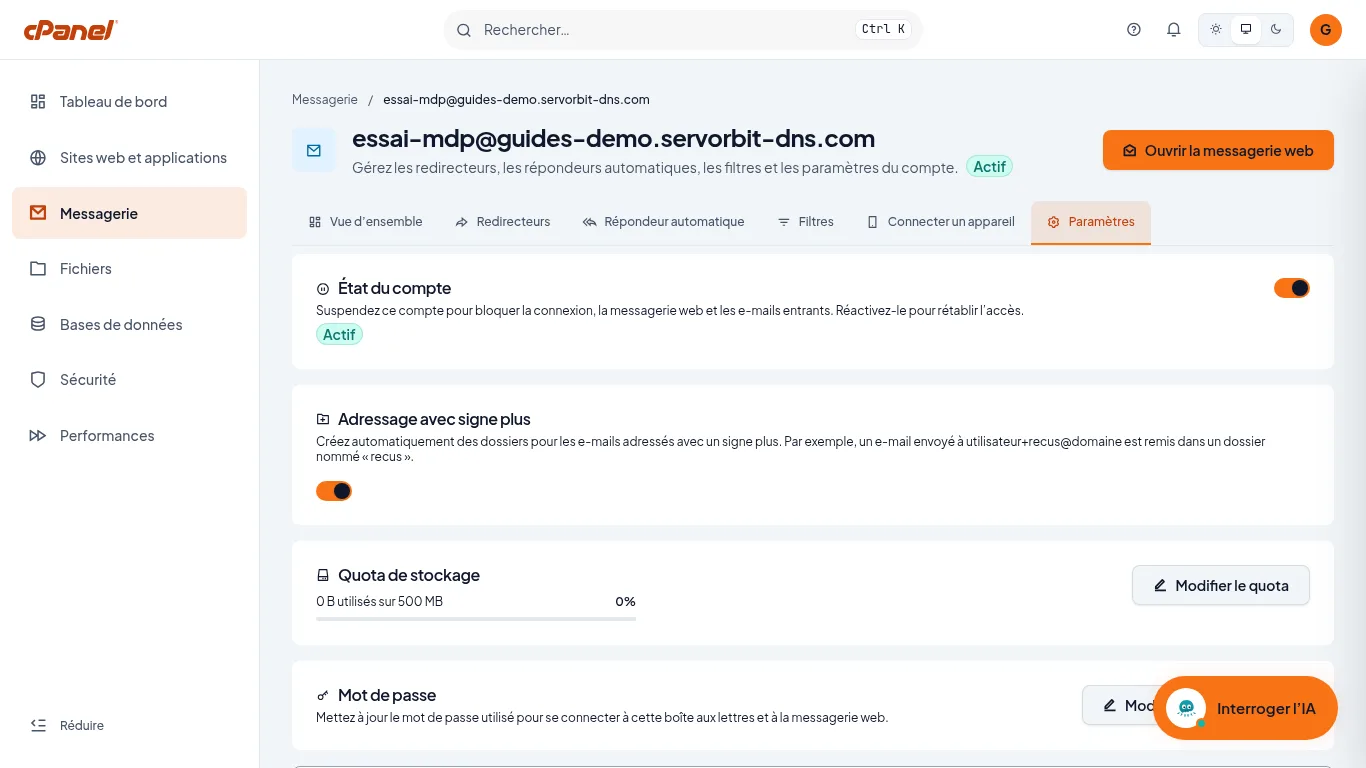
Click the “Paramètres” tab and scroll down if needed. In the “Mot de passe” (Password) block, whose text says it is used to sign in to the mailbox and to webmail, click “Modifier le mot de passe” (Change password).
Enter the new password
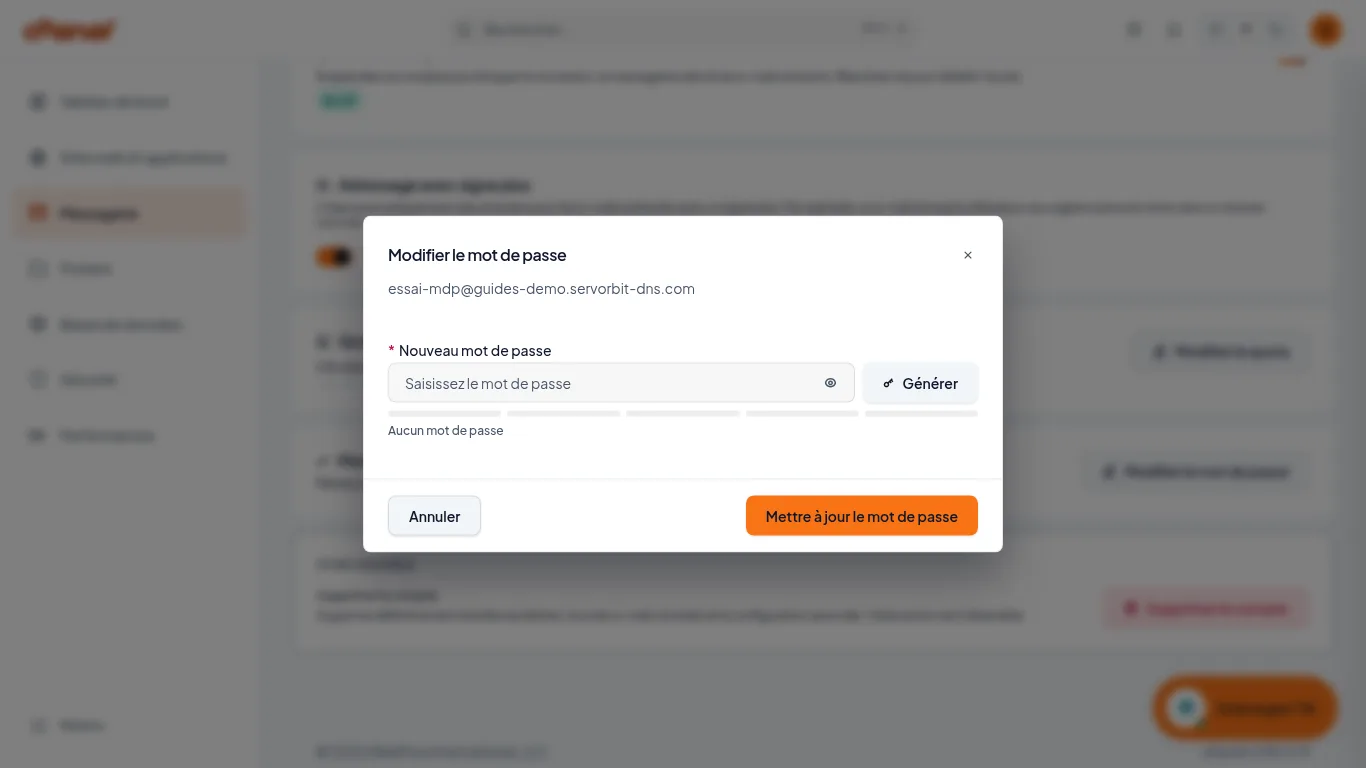
The “Modifier le mot de passe” window repeats the address concerned: check it. Type the password in “Nouveau mot de passe” (New password), or click “Générer” (Generate) to get a random one from cPanel, and write it down before you confirm. The strength level shows under the field. Click “Mettre à jour le mot de passe” (Update password).
Check the confirmation
cPanel shows the notification “Mot de passe mis à jour” (Password updated), followed by “Mot de passe modifié pour” and the address (seen on screen, no screenshot). The new password is active.
The common trap
The “Mot de passe” block sits right above the “Zone sensible” (sensitive zone), whose “Supprimer le compte” (Delete account) button erases the mailbox and all its emails, irreversibly according to the page. Only click “Modifier le mot de passe”, and check the address shown in the window before confirming. Labels are quoted as read in the French interface.
If it doesn't work
- You can't see the “Paramètres” tab: you are on the “Messagerie” list. First click “Gérer” on the mailbox's row.
- The window is open but the field is empty: type a password, or click “Générer”.
- The strength level under the field is low: make the password longer or click “Générer”.
- You clicked “Annuler” or closed the window: nothing was changed, reopen “Modifier le mot de passe” and start again.
- You are looking for the password of the cPanel account itself: this guide only covers the mailboxes listed under “Messagerie”.



