phpMyAdmin lets you load a .sql file into a MySQL database (import) or download a copy of it (export), and we checked it on cPanel 138.0.19 (Meridian interface) on 3 November 2026.
On the Meridian interface (current)
Open phpMyAdmin from the database
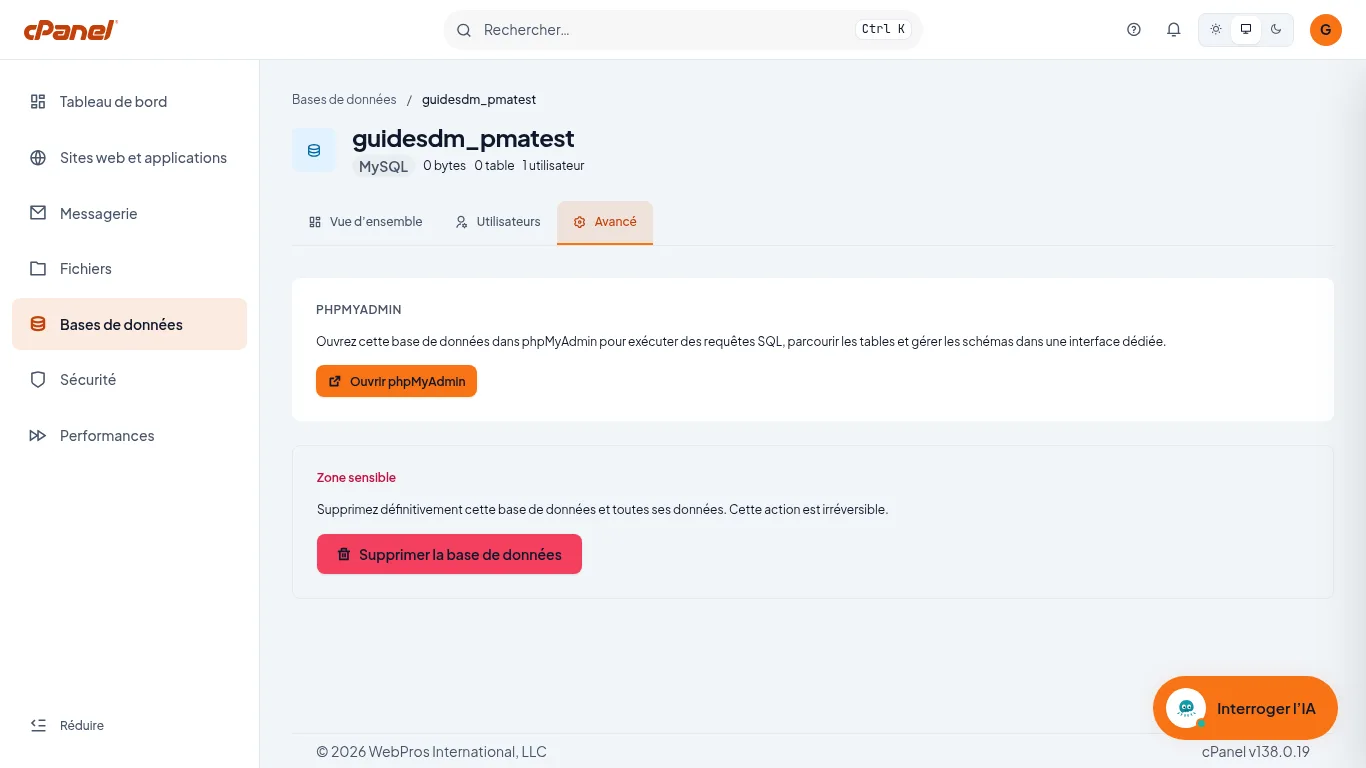
In cPanel, click “Databases” in the sidebar, then “Manage” on the row of the database, open the “Advanced” tab and click “Open phpMyAdmin”. phpMyAdmin opens directly on that database.
Choose the file to import
In the phpMyAdmin tab bar, click Import. Under “File to import:”, click “Choose File” and select your
.sqlfile. The field also accepts a compressed file: phpMyAdmin states that its name must end in.sql.zip, for example. The maximum size allowed is shown next to the field.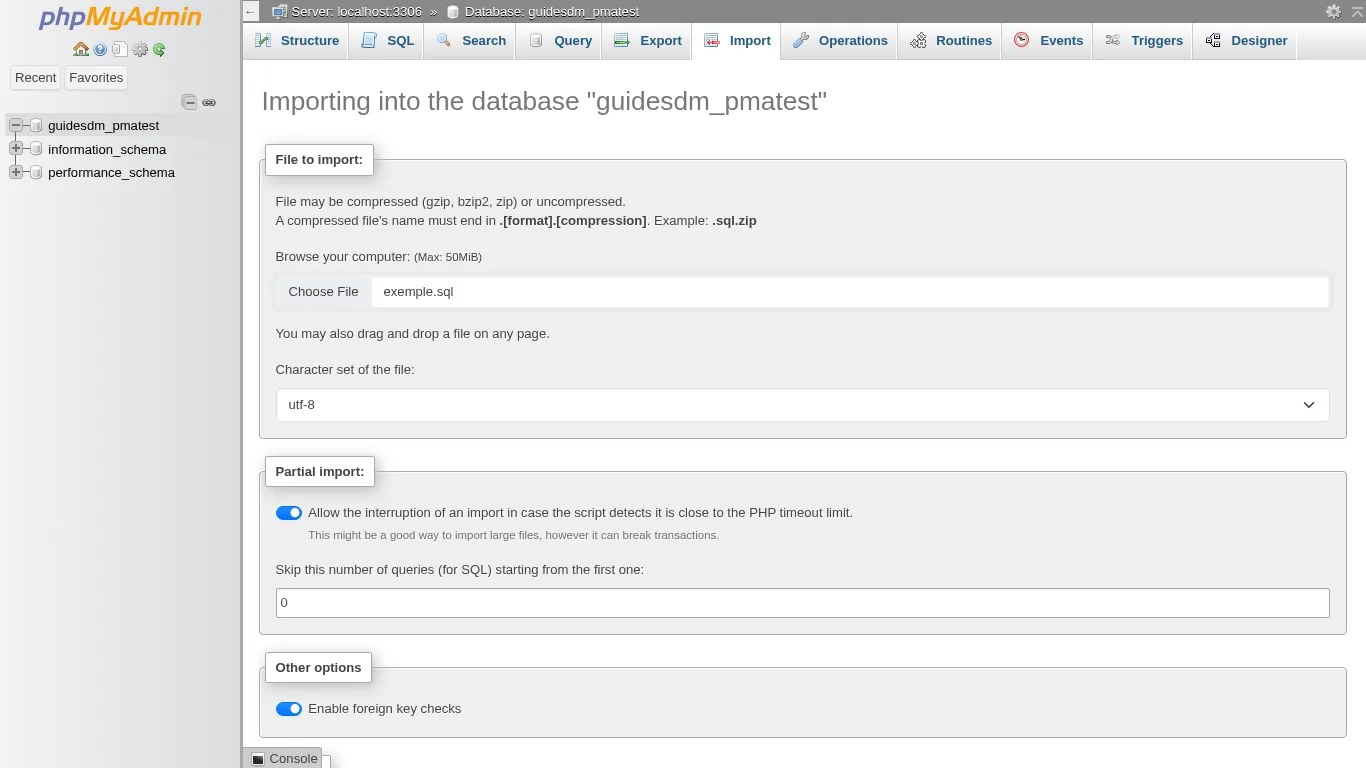
Run the import and check the message
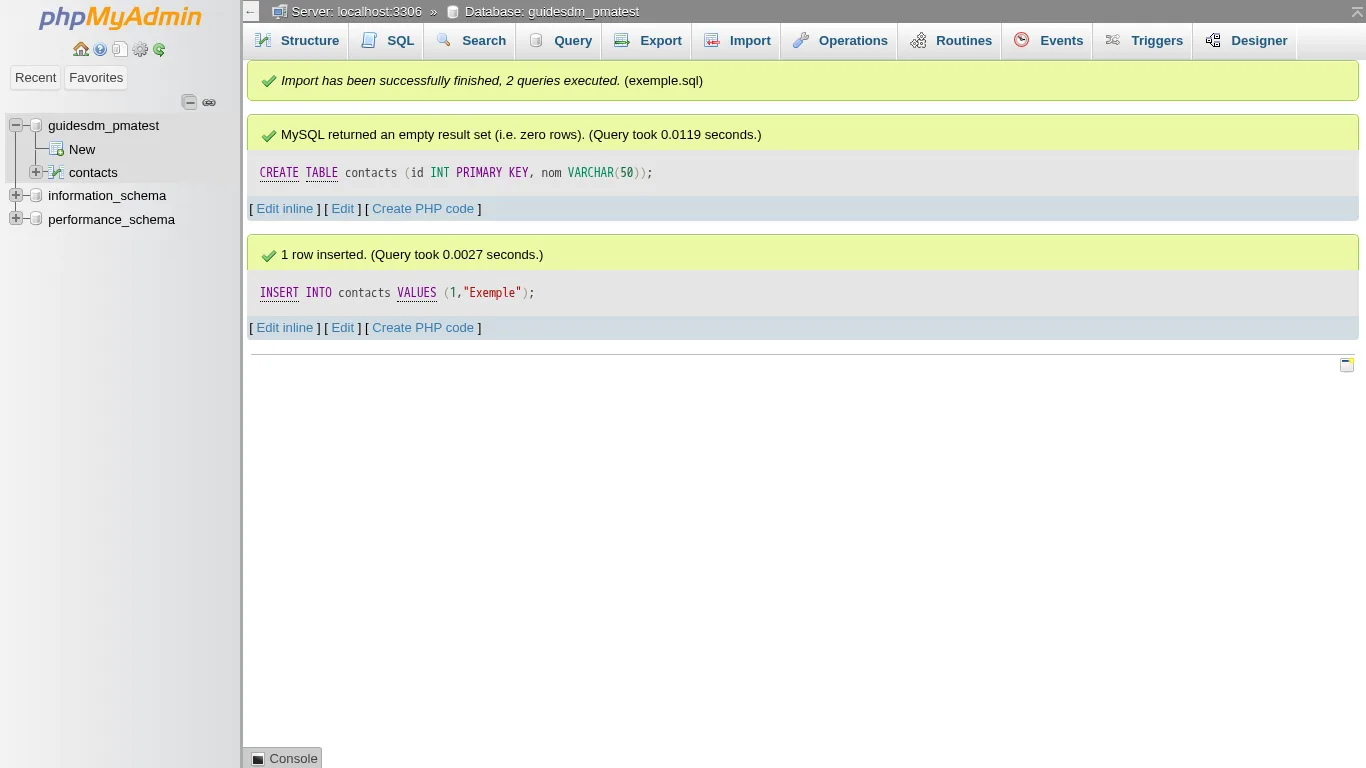
Scroll to the bottom of the page and click “Import”. A green banner “Import has been successfully finished, 2 queries executed.” confirms the result (the number of queries depends on your file), and the imported tables appear in the left-hand column under the database name.
Export the database
Click the Export tab. Leave “Quick - display only the minimal options” under “Export method:” and SQL under “Format:”, then click “Export”. Your browser downloads a
.sqlfile named after the database, which you can keep as a backup or re-import elsewhere.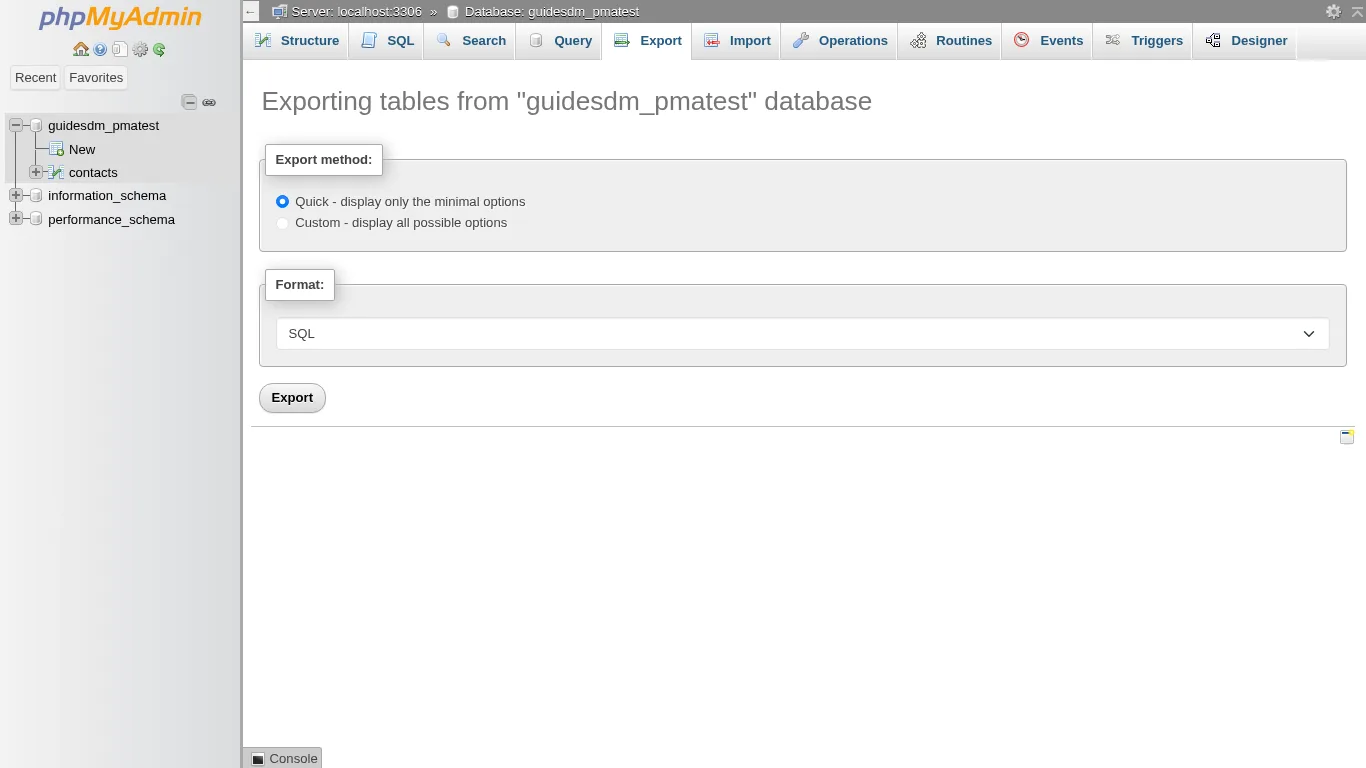
Good to know
phpMyAdmin is displayed in English, even if your cPanel is in French: this is normal, and the labels quoted here (Import, Export, “Choose File”) are those on screen. It also opens in a separate tab: go back to cPanel through the previous tab.
If it doesn't work
- You don't see the success message: the banner only appears after clicking “Import” at the bottom of the page. Check that the file name is shown next to “Choose File” before trying again.
- The file is too big: the maximum size is shown next to the file field, and it depends on your plan. Compress the file (its name must end in
.sql.zip, for example) or split it into several files. - The import targets the wrong database: the page title shows the target database (“Importing into the database …”). If it is not the right one, go back to cPanel and open phpMyAdmin from the right database.
- You don't have a database yet: first follow the guide “Create a MySQL database in cPanel”.


